Compare commits
No commits in common. "bd31410d5abb7004c342640bb4a7dc47333eee03" and "012e22ea6f6d51f9900d8cbd1a79f5f546955c77" have entirely different histories.
bd31410d5a
...
012e22ea6f
@ -24,8 +24,10 @@ package-lock.json.local
|
||||
.github/
|
||||
.travis.yml
|
||||
|
||||
# Documentation - exclude only build artifacts, allow all source
|
||||
docs/book/
|
||||
# Documentation
|
||||
*.md
|
||||
!README.md
|
||||
docs/
|
||||
|
||||
# IDE and editor files
|
||||
.vscode/
|
||||
|
||||
@ -4,9 +4,11 @@ on:
|
||||
push:
|
||||
branches:
|
||||
- main
|
||||
- master
|
||||
pull_request:
|
||||
branches:
|
||||
- main
|
||||
- master
|
||||
|
||||
env:
|
||||
REGISTRY: gt.wittyoneoff.com
|
||||
|
||||
11
.gitignore
vendored
11
.gitignore
vendored
@ -17,15 +17,6 @@ logs/
|
||||
.env
|
||||
.env.local
|
||||
|
||||
# Documentation build output
|
||||
static/docs/
|
||||
|
||||
# Temporary markdown documentation files
|
||||
DOCKER_DOCS_FIXED.md
|
||||
DOCS_TROUBLESHOOTING.md
|
||||
DOCUMENTATION_SUMMARY.md
|
||||
QUICK_START_DOCS.md
|
||||
|
||||
# OS specific
|
||||
.DS_Store
|
||||
Thumbs.db
|
||||
@ -48,5 +39,3 @@ scripts/publish-to-gitea.sh
|
||||
scripts/verify_upgrade.sh
|
||||
scripts/check-setup.sh
|
||||
scripts/test-docker-config.sh
|
||||
scripts/prepare-docker-build.sh
|
||||
scripts/test-docs.sh
|
||||
|
||||
50
Dockerfile
50
Dockerfile
@ -2,39 +2,7 @@
|
||||
# This reduces the final image size significantly by separating build and runtime
|
||||
|
||||
# ============================================================================
|
||||
# Stage 1: Documentation Builder
|
||||
# ============================================================================
|
||||
FROM rust:1.91-slim-bookworm AS docs-builder
|
||||
|
||||
WORKDIR /build
|
||||
|
||||
# Install required tools
|
||||
RUN apt-get update && \
|
||||
apt-get install -y --no-install-recommends curl ca-certificates && \
|
||||
rm -rf /var/lib/apt/lists/*
|
||||
|
||||
# Install mdbook first
|
||||
RUN cargo install mdbook
|
||||
|
||||
# Copy documentation source (includes theme files)
|
||||
COPY docs ./docs
|
||||
|
||||
# Download Catppuccin theme CSS if not already present
|
||||
RUN if [ ! -f docs/theme/catppuccin.css ]; then \
|
||||
curl -fsSL https://github.com/catppuccin/mdBook/releases/latest/download/catppuccin.css \
|
||||
-o docs/theme/catppuccin.css && \
|
||||
echo "Catppuccin CSS downloaded successfully"; \
|
||||
else \
|
||||
echo "Catppuccin CSS already present"; \
|
||||
fi
|
||||
|
||||
# Build documentation
|
||||
RUN cd docs && \
|
||||
mdbook build && \
|
||||
ls -la book/
|
||||
|
||||
# ============================================================================
|
||||
# Stage 2: Rust Builder
|
||||
# Stage 1: Rust Builder
|
||||
# ============================================================================
|
||||
FROM rust:1.91-slim-bookworm AS rust-builder
|
||||
|
||||
@ -61,14 +29,6 @@ RUN mkdir src && \
|
||||
COPY src ./src
|
||||
COPY templates ./templates
|
||||
COPY static ./static
|
||||
COPY build.rs ./build.rs
|
||||
|
||||
# Copy built documentation from docs-builder stage
|
||||
COPY --from=docs-builder /build/docs/book ./static/docs
|
||||
|
||||
# Verify documentation was copied
|
||||
RUN ls -la ./static/docs/ && \
|
||||
test -f ./static/docs/index.html || (echo "ERROR: Documentation index.html not found!" && exit 1)
|
||||
|
||||
# Build the actual application (force rebuild by touching sources)
|
||||
RUN touch src/server.rs src/lib.rs && \
|
||||
@ -76,7 +36,7 @@ RUN touch src/server.rs src/lib.rs && \
|
||||
strip target/release/webterm-server
|
||||
|
||||
# ============================================================================
|
||||
# Stage 3: Node.js Builder
|
||||
# Stage 2: Node.js Builder
|
||||
# ============================================================================
|
||||
FROM node:20-slim AS node-builder
|
||||
|
||||
@ -96,7 +56,7 @@ RUN npm ci --only=production && \
|
||||
cp static/favicon.png node_modules/
|
||||
|
||||
# ============================================================================
|
||||
# Stage 4: Runtime Image
|
||||
# Stage 3: Runtime Image
|
||||
# ============================================================================
|
||||
FROM debian:trixie-slim
|
||||
|
||||
@ -144,10 +104,6 @@ COPY --from=rust-builder /build/target/release/webterm-server /usr/local/bin/web
|
||||
COPY --from=rust-builder /build/templates ./templates
|
||||
COPY --from=rust-builder /build/static ./static
|
||||
|
||||
# Verify documentation is present in static/docs
|
||||
RUN ls -la ./static/docs/ && \
|
||||
test -f ./static/docs/index.html || echo "WARNING: Documentation not found in static/docs"
|
||||
|
||||
# Copy node_modules from node-builder
|
||||
COPY --from=node-builder /build/node_modules ./node_modules
|
||||
|
||||
|
||||
@ -125,7 +125,7 @@ kubectl apply -f kubernetes/
|
||||
|
||||
This project includes a complete CI/CD pipeline using Gitea Actions:
|
||||
|
||||
- **Automatic builds** on every push to main
|
||||
- **Automatic builds** on every push to main/master
|
||||
- **Version tagging** from Cargo.toml
|
||||
- **Container registry** integration
|
||||
- **Automated k3s deployment** with rolling updates
|
||||
|
||||
79
build.rs
79
build.rs
@ -1,5 +1,4 @@
|
||||
use std::path::Path;
|
||||
use std::process::Command;
|
||||
|
||||
fn main() {
|
||||
// Verify that required directories exist at build time
|
||||
@ -47,87 +46,9 @@ fn main() {
|
||||
}
|
||||
}
|
||||
|
||||
// Build mdBook documentation
|
||||
build_documentation();
|
||||
|
||||
// Tell cargo to rerun if these directories change
|
||||
println!("cargo:rerun-if-changed=static/");
|
||||
println!("cargo:rerun-if-changed=templates/");
|
||||
println!("cargo:rerun-if-changed=package.json");
|
||||
println!("cargo:rerun-if-changed=package-lock.json");
|
||||
println!("cargo:rerun-if-changed=docs/");
|
||||
}
|
||||
|
||||
fn build_documentation() {
|
||||
let docs_dir = Path::new("docs");
|
||||
let static_docs_dir = Path::new("static/docs");
|
||||
|
||||
// If static/docs already exists (e.g., from Docker COPY), we're done
|
||||
if static_docs_dir.exists() {
|
||||
println!("cargo:warning=Documentation already present in static/docs");
|
||||
return;
|
||||
}
|
||||
|
||||
if !docs_dir.exists() {
|
||||
println!("cargo:warning=Documentation directory not found, skipping docs build");
|
||||
return;
|
||||
}
|
||||
|
||||
// Check if mdbook is installed
|
||||
let mdbook_check = Command::new("mdbook").arg("--version").output();
|
||||
|
||||
if mdbook_check.is_err() {
|
||||
println!("cargo:warning=mdbook not found. Install with: cargo install mdbook");
|
||||
println!("cargo:warning=Skipping documentation build");
|
||||
println!("cargo:warning=Documentation will be available if pre-built in static/docs");
|
||||
return;
|
||||
}
|
||||
|
||||
// Note: mdbook-catppuccin preprocessor is deprecated
|
||||
// Catppuccin theme is now applied via CSS file in docs/theme/
|
||||
// No need to check for mdbook-catppuccin installation
|
||||
|
||||
// Build the documentation
|
||||
println!("cargo:warning=Building documentation with mdbook...");
|
||||
let build_result = Command::new("mdbook")
|
||||
.arg("build")
|
||||
.current_dir("docs")
|
||||
.status();
|
||||
|
||||
match build_result {
|
||||
Ok(status) if status.success() => {
|
||||
println!("cargo:warning=Documentation built successfully");
|
||||
|
||||
// Copy docs to static directory for serving
|
||||
if Path::new("docs/book").exists() {
|
||||
// Ensure static directory exists
|
||||
let _ = std::fs::create_dir_all("static");
|
||||
|
||||
let copy_result = if cfg!(target_os = "windows") {
|
||||
Command::new("xcopy")
|
||||
.args(&["/E", "/I", "/Y", "docs\\book", "static\\docs"])
|
||||
.status()
|
||||
} else {
|
||||
Command::new("cp")
|
||||
.args(&["-r", "docs/book", "static/docs"])
|
||||
.status()
|
||||
};
|
||||
|
||||
match copy_result {
|
||||
Ok(status) if status.success() => {
|
||||
println!("cargo:warning=Documentation copied to static/docs");
|
||||
}
|
||||
_ => {
|
||||
println!("cargo:warning=Failed to copy documentation to static directory");
|
||||
}
|
||||
}
|
||||
}
|
||||
}
|
||||
Ok(_) => {
|
||||
println!("cargo:warning=mdbook build failed");
|
||||
}
|
||||
Err(e) => {
|
||||
println!("cargo:warning=Failed to run mdbook: {}", e);
|
||||
}
|
||||
}
|
||||
}
|
||||
|
||||
10
docs/.gitignore
vendored
10
docs/.gitignore
vendored
@ -1,10 +0,0 @@
|
||||
# mdBook build output
|
||||
book/
|
||||
|
||||
# Backup files
|
||||
*.bak
|
||||
*~
|
||||
|
||||
# OS files
|
||||
.DS_Store
|
||||
Thumbs.db
|
||||
@ -1,345 +0,0 @@
|
||||
# Contributing to socktop Documentation
|
||||
|
||||
Thank you for your interest in improving the socktop documentation!
|
||||
|
||||
## Quick Start
|
||||
|
||||
1. **Install documentation tools:**
|
||||
```bash
|
||||
./setup-docs.sh
|
||||
```
|
||||
|
||||
2. **Make your changes** to the relevant `.md` files in `src/`
|
||||
|
||||
3. **Test locally:**
|
||||
```bash
|
||||
mdbook serve
|
||||
```
|
||||
Open http://localhost:3000 to preview
|
||||
|
||||
4. **Submit a pull request** with your changes
|
||||
|
||||
## Documentation Structure
|
||||
|
||||
```
|
||||
docs/src/
|
||||
├── SUMMARY.md # Table of contents (edit when adding pages)
|
||||
├── introduction.md # Project overview
|
||||
├── installation/ # Installation guides
|
||||
├── usage/ # Usage documentation
|
||||
├── security/ # Security guides
|
||||
└── advanced/ # Advanced topics
|
||||
```
|
||||
|
||||
## Writing Guidelines
|
||||
|
||||
### Style Guide
|
||||
|
||||
- **Be clear and concise** - Users want answers, not prose
|
||||
- **Use active voice** - "Run the command" not "The command should be run"
|
||||
- **Include examples** - Show, don't just tell
|
||||
- **Test your code** - Verify all commands and code examples work
|
||||
- **Link related content** - Help users discover related topics
|
||||
|
||||
### Markdown Formatting
|
||||
|
||||
Use standard Markdown with these conventions:
|
||||
|
||||
#### Code Blocks
|
||||
|
||||
Always specify the language:
|
||||
|
||||
~~~markdown
|
||||
```bash
|
||||
cargo install socktop
|
||||
```
|
||||
|
||||
```rust
|
||||
use socktop_connector::*;
|
||||
```
|
||||
|
||||
```toml
|
||||
[profiles.server]
|
||||
url = "ws://localhost:3000"
|
||||
```
|
||||
~~~
|
||||
|
||||
#### Command Examples
|
||||
|
||||
Show both the command and expected output:
|
||||
|
||||
```bash
|
||||
# Check version
|
||||
socktop --version
|
||||
# Output: socktop 1.50.2
|
||||
```
|
||||
|
||||
#### Admonitions
|
||||
|
||||
Use clear callouts for important information:
|
||||
|
||||
```markdown
|
||||
**Note:** This requires root permissions.
|
||||
|
||||
**Warning:** This will delete all data.
|
||||
|
||||
**Tip:** Use Ctrl+C to exit.
|
||||
```
|
||||
|
||||
#### Links
|
||||
|
||||
Use descriptive link text:
|
||||
|
||||
```markdown
|
||||
✅ Good: See [Agent Service Setup](../installation/agent-service.md)
|
||||
❌ Bad: Click [here](../installation/agent-service.md)
|
||||
```
|
||||
|
||||
### Page Structure
|
||||
|
||||
Each page should follow this template:
|
||||
|
||||
```markdown
|
||||
# Page Title
|
||||
|
||||
Brief introduction explaining what this page covers.
|
||||
|
||||
## Section 1
|
||||
|
||||
Content...
|
||||
|
||||
### Subsection 1.1
|
||||
|
||||
More specific content...
|
||||
|
||||
## Section 2
|
||||
|
||||
More content...
|
||||
|
||||
## Next Steps
|
||||
|
||||
- [Related Topic 1](./related-topic-1.md)
|
||||
- [Related Topic 2](./related-topic-2.md)
|
||||
|
||||
<!-- TODO: Add more documentation -->
|
||||
<!-- TODO: Add specific improvements needed -->
|
||||
```
|
||||
|
||||
## Adding New Pages
|
||||
|
||||
1. **Create the file** in the appropriate directory:
|
||||
```bash
|
||||
touch src/installation/new-guide.md
|
||||
```
|
||||
|
||||
2. **Add to SUMMARY.md** in the correct section:
|
||||
```markdown
|
||||
# Installation
|
||||
|
||||
- [Quick Start](./installation/quick-start.md)
|
||||
- [New Guide](./installation/new-guide.md) # Add here
|
||||
```
|
||||
|
||||
3. **Write the content** following the guidelines above
|
||||
|
||||
4. **Test the build:**
|
||||
```bash
|
||||
mdbook build
|
||||
mdbook serve
|
||||
```
|
||||
|
||||
5. **Check for broken links:**
|
||||
- Navigate to your new page
|
||||
- Click all internal links
|
||||
- Verify they work correctly
|
||||
|
||||
## Updating Existing Pages
|
||||
|
||||
1. **Edit the `.md` file** directly
|
||||
|
||||
2. **Maintain consistency:**
|
||||
- Keep the same writing style
|
||||
- Don't remove useful examples
|
||||
- Update version numbers if needed
|
||||
|
||||
3. **Update related pages** if your changes affect them
|
||||
|
||||
4. **Test thoroughly:**
|
||||
```bash
|
||||
mdbook serve
|
||||
```
|
||||
|
||||
## TODO Comments
|
||||
|
||||
Use TODO comments to mark areas needing work:
|
||||
|
||||
```markdown
|
||||
<!-- TODO: Add more documentation -->
|
||||
<!-- TODO: Add screenshots -->
|
||||
<!-- TODO: Add video demonstration -->
|
||||
<!-- TODO: Expand with more examples -->
|
||||
```
|
||||
|
||||
These help identify areas for future improvement.
|
||||
|
||||
## Screenshots and Images
|
||||
|
||||
When adding images:
|
||||
|
||||
1. **Create an `images/` directory** in the relevant section:
|
||||
```bash
|
||||
mkdir -p src/installation/images
|
||||
```
|
||||
|
||||
2. **Use descriptive filenames:**
|
||||
```
|
||||
✅ Good: installation-apt-repository.png
|
||||
❌ Bad: screenshot1.png
|
||||
```
|
||||
|
||||
3. **Reference in Markdown:**
|
||||
```markdown
|
||||

|
||||
```
|
||||
|
||||
4. **Optimize images:**
|
||||
- Use PNG for screenshots
|
||||
- Use JPG for photos
|
||||
- Compress to reduce file size
|
||||
- Maximum width: 1200px
|
||||
|
||||
## Code Examples
|
||||
|
||||
### Shell Scripts
|
||||
|
||||
```bash
|
||||
#!/bin/bash
|
||||
# Always include a description comment
|
||||
|
||||
# Use descriptive variable names
|
||||
SERVER_URL="ws://localhost:3000"
|
||||
|
||||
# Show error handling
|
||||
if ! command -v socktop &> /dev/null; then
|
||||
echo "Error: socktop not installed"
|
||||
exit 1
|
||||
fi
|
||||
|
||||
# Clear, commented steps
|
||||
socktop "$SERVER_URL"
|
||||
```
|
||||
|
||||
### Rust Code
|
||||
|
||||
```rust
|
||||
// Include necessary imports
|
||||
use socktop_connector::*;
|
||||
|
||||
// Add comments for complex logic
|
||||
#[tokio::main]
|
||||
async fn main() -> Result<(), Box<dyn std::error::Error>> {
|
||||
// Connect to agent
|
||||
let mut connector = connect_to_socktop_agent("ws://localhost:3000/ws").await?;
|
||||
|
||||
// Request metrics
|
||||
match connector.request(AgentRequest::Metrics).await {
|
||||
Ok(AgentResponse::Metrics(m)) => {
|
||||
println!("CPU: {:.1}%", m.cpu_total);
|
||||
}
|
||||
Err(e) => eprintln!("Error: {}", e),
|
||||
_ => unreachable!(),
|
||||
}
|
||||
|
||||
Ok(())
|
||||
}
|
||||
```
|
||||
|
||||
### Configuration Files
|
||||
|
||||
Always show complete, working examples:
|
||||
|
||||
```toml
|
||||
# ~/.config/socktop/profiles.toml
|
||||
|
||||
[profiles.production]
|
||||
url = "wss://prod.example.com:3000"
|
||||
token = "your-token-here"
|
||||
ca_cert = "/etc/ssl/certs/ca.pem"
|
||||
verify_tls = true
|
||||
```
|
||||
|
||||
## Testing Your Changes
|
||||
|
||||
### Local Preview
|
||||
|
||||
```bash
|
||||
# Start development server
|
||||
mdbook serve
|
||||
|
||||
# Open in browser
|
||||
# Navigate to your changed pages
|
||||
# Verify formatting and links
|
||||
```
|
||||
|
||||
### Build Test
|
||||
|
||||
```bash
|
||||
# Clean build
|
||||
rm -rf book/
|
||||
mdbook build
|
||||
|
||||
# Check for warnings
|
||||
# Fix any broken links or errors
|
||||
```
|
||||
|
||||
### Cross-Reference Check
|
||||
|
||||
- Click all internal links
|
||||
- Verify they point to correct pages
|
||||
- Check that anchor links work
|
||||
- Test external links
|
||||
|
||||
## Submitting Changes
|
||||
|
||||
1. **Commit with clear messages:**
|
||||
```bash
|
||||
git add docs/src/installation/new-guide.md
|
||||
git commit -m "docs: Add new installation guide for Docker"
|
||||
```
|
||||
|
||||
2. **Push to your fork:**
|
||||
```bash
|
||||
git push origin docs/docker-install
|
||||
```
|
||||
|
||||
3. **Create pull request:**
|
||||
- Describe what you added/changed
|
||||
- Explain why it's needed
|
||||
- Link to any related issues
|
||||
|
||||
## Documentation Priorities
|
||||
|
||||
Focus on these high-impact areas:
|
||||
|
||||
1. **Missing content** marked with TODO comments
|
||||
2. **User-reported confusion** from issues/discussions
|
||||
3. **New features** that need documentation
|
||||
4. **Common questions** that arise frequently
|
||||
5. **Error scenarios** and troubleshooting
|
||||
|
||||
## Getting Help
|
||||
|
||||
- **Questions?** Open a discussion on GitHub
|
||||
- **Found a bug in docs?** Open an issue with the "documentation" label
|
||||
- **Want to discuss major changes?** Start with an issue before writing
|
||||
|
||||
## Recognition
|
||||
|
||||
All documentation contributors will be acknowledged in:
|
||||
- Git history
|
||||
- Contributors list
|
||||
- Release notes (for significant contributions)
|
||||
|
||||
## Thank You!
|
||||
|
||||
Good documentation is crucial for project success. Your contributions help users get started faster and use socktop more effectively. Thank you for helping improve the documentation! 🎉
|
||||
@ -1,201 +0,0 @@
|
||||
# Documentation Corrections Summary
|
||||
|
||||
This document lists all corrections made to the socktop documentation to align with the actual implementation as documented in the official README.
|
||||
|
||||
## Date: 2025-01-XX
|
||||
|
||||
## Critical Corrections Made
|
||||
|
||||
### 1. Missing GPU Dependencies ✅ FIXED
|
||||
|
||||
**Issue:** Documentation failed to mention required GPU support libraries.
|
||||
|
||||
**Fix:** Added `libdrm-dev` and `libdrm-amdgpu1` to:
|
||||
- `docs/src/installation/prerequisites.md`
|
||||
- `docs/src/installation/quick-start.md`
|
||||
- `docs/src/installation/apt.md`
|
||||
- `docs/src/installation/cargo.md`
|
||||
|
||||
**Reason:** These libraries are explicitly required in the README for GPU metrics support on Raspberry Pi, Ubuntu, and PopOS.
|
||||
|
||||
---
|
||||
|
||||
### 2. TLS Certificate Auto-Generation ✅ FIXED
|
||||
|
||||
**Issue:** Documentation incorrectly instructed users to manually generate certificates with OpenSSL.
|
||||
|
||||
**Actual Behavior:** The agent automatically generates self-signed certificates on first run when `--enableSSL` is used.
|
||||
|
||||
**Files Updated:**
|
||||
- `docs/src/security/tls.md` - Completely rewrote the "Quick Start" section to reflect auto-generation
|
||||
- Added information about certificate location (`$XDG_CONFIG_HOME/socktop_agent/tls/cert.pem`)
|
||||
- Added information about `SOCKTOP_AGENT_EXTRA_SANS` environment variable
|
||||
- Updated certificate renewal section to explain simple deletion and restart process
|
||||
|
||||
**Key Changes:**
|
||||
- Changed from manual OpenSSL commands to simple `socktop_agent --enableSSL --port 8443`
|
||||
- Documented that certificate is auto-generated and location is printed on first run
|
||||
- Updated expiry information (~397 days)
|
||||
- Moved manual generation to "Manual Certificate Generation" section for advanced users only
|
||||
|
||||
---
|
||||
|
||||
### 3. Fabricated Command-Line Options ✅ FIXED
|
||||
|
||||
**Issue:** Documentation extensively referenced non-existent options.
|
||||
|
||||
**Fabricated Options:**
|
||||
- `--refresh-rate` (does not exist)
|
||||
- `--ca-cert` (actual flag is `--tls-ca`)
|
||||
- `--no-verify-tls` (does not exist in this form)
|
||||
|
||||
**Correct Options:**
|
||||
- `--metrics-interval-ms` (default: 500ms) - Controls fast metrics polling
|
||||
- `--processes-interval-ms` (default: 2000ms) - Controls process list polling
|
||||
- `--tls-ca` - Specify CA certificate for TLS verification
|
||||
- `--verify-hostname` - Enable strict hostname verification
|
||||
|
||||
**Files Updated:**
|
||||
- `docs/src/usage/general.md` - Fixed command-line options and examples
|
||||
- `docs/src/usage/configuration.md` - Fixed interval examples
|
||||
- `docs/src/usage/connection-profiles.md` - Fixed override examples
|
||||
- `docs/src/security/tls.md` - Fixed TLS option references
|
||||
- `docs/src/security/token.md` - Fixed CA cert flag
|
||||
|
||||
---
|
||||
|
||||
### 4. Profile Format Fabrication ✅ FIXED
|
||||
|
||||
**Issue:** Documentation claimed profiles are stored in TOML format.
|
||||
|
||||
**Actual Format:** Profiles are stored as JSON in `~/.config/socktop/profiles.json`
|
||||
|
||||
**Correct Structure:**
|
||||
```json
|
||||
{
|
||||
"profiles": {
|
||||
"prod": {
|
||||
"url": "ws://prod-host:3000/ws",
|
||||
"tls_ca": "/path/to/cert.pem",
|
||||
"metrics_interval_ms": 500,
|
||||
"processes_interval_ms": 2000
|
||||
}
|
||||
},
|
||||
"version": 0
|
||||
}
|
||||
```
|
||||
|
||||
**Files Updated:**
|
||||
- `docs/src/usage/connection-profiles.md` - Completely rewrote profile examples to use JSON
|
||||
- `docs/src/security/tls.md` - Fixed profile examples
|
||||
- `docs/src/security/token.md` - Fixed profile examples and file paths
|
||||
|
||||
**Note:** Many examples in connection-profiles.md still need updating (see "Remaining Issues" below).
|
||||
|
||||
---
|
||||
|
||||
### 5. Protocol Description ✅ FIXED
|
||||
|
||||
**Issue:** Documentation claimed WebSocket protocol uses Protocol Buffers.
|
||||
|
||||
**Actual Protocol:** JSON over WebSocket (as stated in README: "Remote monitoring via WebSocket (JSON over WS)")
|
||||
|
||||
**Files Updated:**
|
||||
- `docs/src/introduction.md` - Changed "Protocol Buffers" to "JSON"
|
||||
|
||||
---
|
||||
|
||||
### 6. Demo Mode Documentation ✅ ADDED
|
||||
|
||||
**Issue:** Documentation did not mention the built-in demo mode feature.
|
||||
|
||||
**Actual Feature:** The `--demo` flag starts a temporary local agent on port 3231 and auto-connects.
|
||||
|
||||
**Files Updated:**
|
||||
- `docs/src/installation/quick-start.md` - Added "Option 3: Demo Mode" section
|
||||
- `docs/src/usage/general.md` - Added "Demo Mode" as first usage option
|
||||
- `docs/src/introduction.md` - Added demo mode to features and quick start section
|
||||
|
||||
**Key Information Added:**
|
||||
- `socktop --demo` launches temporary agent on port 3231
|
||||
- Agent stops automatically when you quit
|
||||
- Interactive profile selection menu includes built-in `demo` option
|
||||
- Perfect for testing, learning, and demos without agent setup
|
||||
|
||||
---
|
||||
|
||||
## Remaining Issues (Known)
|
||||
|
||||
### Connection Profiles Documentation
|
||||
|
||||
The file `docs/src/usage/connection-profiles.md` still contains many TOML examples that should be JSON:
|
||||
|
||||
- Lines ~233-243: Production server examples
|
||||
- Lines ~265-274: Refresh rate examples (also using wrong option names)
|
||||
- Lines ~280-287: Environment variable examples
|
||||
- Lines ~293-302: Template examples
|
||||
- Lines ~309-319: Raspberry Pi cluster examples
|
||||
- Lines ~329-339: AWS examples
|
||||
- Lines ~349-359: Datacenter examples
|
||||
- Lines ~372-401: Troubleshooting section references
|
||||
|
||||
**Recommendation:** These should be converted to JSON format or removed in favor of simpler examples.
|
||||
|
||||
### Configuration Documentation
|
||||
|
||||
The file `docs/src/usage/configuration.md` may reference TOML in the configuration hierarchy section (line ~9).
|
||||
|
||||
---
|
||||
|
||||
## Verification Checklist
|
||||
|
||||
Before deploying documentation:
|
||||
|
||||
- [ ] All `--refresh-rate` references removed
|
||||
- [ ] All `--ca-cert` changed to `--tls-ca`
|
||||
- [ ] All `--no-verify-tls` references updated to explain proper behavior
|
||||
- [ ] All TOML profile examples converted to JSON
|
||||
- [ ] All file paths reference `.json` not `.toml`
|
||||
- [ ] GPU dependencies mentioned in all installation paths
|
||||
- [ ] TLS documentation explains auto-generation as primary method
|
||||
- [ ] Protocol description says JSON, not Protocol Buffers
|
||||
|
||||
---
|
||||
|
||||
## Testing Recommendations
|
||||
|
||||
1. **Verify actual command-line options:**
|
||||
```bash
|
||||
socktop --help
|
||||
socktop_agent --help
|
||||
```
|
||||
|
||||
2. **Verify profile format:**
|
||||
- Create a profile using `--profile` flag
|
||||
- Check `~/.config/socktop/profiles.json` format
|
||||
|
||||
3. **Verify TLS auto-generation:**
|
||||
- Run `socktop_agent --enableSSL --port 8443` on a fresh system
|
||||
- Confirm certificate is auto-generated
|
||||
- Check certificate location matches documentation
|
||||
|
||||
4. **Verify GPU dependencies:**
|
||||
- Test installation without `libdrm-dev libdrm-amdgpu1`
|
||||
- Confirm whether GPU metrics fail or if they're truly required
|
||||
|
||||
---
|
||||
|
||||
## Lessons Learned
|
||||
|
||||
1. **Always verify against source material** - Cross-reference README, actual CLI help, and source code
|
||||
2. **Don't fabricate features** - If uncertain, mark as TODO rather than guessing
|
||||
3. **Test commands before documenting** - Verify all command-line examples actually work
|
||||
4. **Configuration format matters** - JSON vs TOML vs YAML is critical, not interchangeable
|
||||
5. **Auto-generated features should be documented as such** - Don't make users do manual work when automation exists
|
||||
|
||||
---
|
||||
|
||||
## References
|
||||
|
||||
- Official README: https://github.com/jasonwitty/socktop/blob/master/README.md
|
||||
- Actual implementation should always take precedence over documentation
|
||||
261
docs/README.md
261
docs/README.md
@ -1,261 +0,0 @@
|
||||
# socktop Documentation
|
||||
|
||||
This directory contains the source for socktop's comprehensive documentation built with [mdBook](https://rust-lang.github.io/mdBook/) and styled with the Catppuccin Frappe theme.
|
||||
|
||||
## Quick Start
|
||||
|
||||
```bash
|
||||
# Install and build documentation
|
||||
./setup-docs.sh
|
||||
|
||||
# Or manually:
|
||||
cargo install mdbook mdbook-catppuccin
|
||||
cd docs && mdbook-catppuccin install && mdbook build
|
||||
|
||||
# Serve with live reload
|
||||
mdbook serve --open
|
||||
```
|
||||
|
||||
## What's Included
|
||||
|
||||
📚 **6,400+ lines** of comprehensive documentation covering:
|
||||
|
||||
- **Installation**: Quick start, prerequisites, Cargo, APT, systemd service, upgrading
|
||||
- **Usage**: General usage, connection profiles, keyboard controls, configuration
|
||||
- **Security**: Authentication tokens, TLS/SSL setup
|
||||
- **Advanced**: tmux/Zellij integration, agent library, connector API
|
||||
|
||||
## Building the Documentation
|
||||
|
||||
### Automated Setup (Recommended)
|
||||
|
||||
```bash
|
||||
./setup-docs.sh
|
||||
```
|
||||
|
||||
This script will:
|
||||
- Check for Rust/Cargo installation
|
||||
- Install mdbook and mdbook-catppuccin
|
||||
- Install Catppuccin theme assets
|
||||
- Build the documentation
|
||||
- Provide next steps
|
||||
|
||||
### Manual Setup
|
||||
|
||||
1. **Install tools:**
|
||||
```bash
|
||||
cargo install mdbook
|
||||
cargo install mdbook-catppuccin
|
||||
```
|
||||
|
||||
2. **Install theme:**
|
||||
```bash
|
||||
cd docs
|
||||
mdbook-catppuccin install
|
||||
```
|
||||
|
||||
3. **Build:**
|
||||
```bash
|
||||
mdbook build
|
||||
```
|
||||
|
||||
4. **Serve locally:**
|
||||
```bash
|
||||
mdbook serve
|
||||
```
|
||||
Open http://localhost:3000
|
||||
|
||||
### Automatic Build (During Compilation)
|
||||
|
||||
Documentation builds automatically when compiling the project:
|
||||
|
||||
```bash
|
||||
# From project root
|
||||
cargo build
|
||||
```
|
||||
|
||||
Built docs are copied to `static/docs/` and served at `/assets/docs/`
|
||||
|
||||
## Documentation Structure
|
||||
|
||||
```
|
||||
docs/
|
||||
├── book.toml # mdBook configuration with Catppuccin
|
||||
├── README.md # This file
|
||||
├── CONTRIBUTING.md # Contributor guidelines
|
||||
├── setup-docs.sh # Automated setup script
|
||||
├── .gitignore # Ignore build artifacts
|
||||
└── src/
|
||||
├── SUMMARY.md # Table of contents
|
||||
├── introduction.md # Project overview
|
||||
├── installation/ # Installation guides (6 pages)
|
||||
│ ├── quick-start.md
|
||||
│ ├── prerequisites.md
|
||||
│ ├── cargo.md
|
||||
│ ├── apt.md
|
||||
│ ├── agent-service.md
|
||||
│ └── upgrading.md
|
||||
├── usage/ # Usage guides (4 pages)
|
||||
│ ├── general.md
|
||||
│ ├── connection-profiles.md
|
||||
│ ├── keyboard-mouse.md
|
||||
│ └── configuration.md
|
||||
├── security/ # Security documentation (2 pages)
|
||||
│ ├── token.md
|
||||
│ └── tls.md
|
||||
└── advanced/ # Advanced topics (4 pages)
|
||||
├── tmux.md
|
||||
├── zellij.md
|
||||
├── agent-integration.md
|
||||
└── connector.md
|
||||
```
|
||||
|
||||
## Adding New Pages
|
||||
|
||||
1. **Create the file** in the appropriate directory:
|
||||
```bash
|
||||
touch src/installation/new-guide.md
|
||||
```
|
||||
|
||||
2. **Add to SUMMARY.md** in the correct section:
|
||||
```markdown
|
||||
# Installation
|
||||
- [Quick Start](./installation/quick-start.md)
|
||||
- [New Guide](./installation/new-guide.md) # Add here
|
||||
```
|
||||
|
||||
3. **Write content** following the [CONTRIBUTING.md](./CONTRIBUTING.md) guidelines
|
||||
|
||||
4. **Test:**
|
||||
```bash
|
||||
mdbook serve
|
||||
```
|
||||
|
||||
5. **Commit:**
|
||||
```bash
|
||||
git add src/installation/new-guide.md src/SUMMARY.md
|
||||
git commit -m "docs: Add new installation guide"
|
||||
```
|
||||
|
||||
## Writing Guidelines
|
||||
|
||||
### Style
|
||||
- ✅ Clear and concise language
|
||||
- ✅ Active voice ("Run the command" not "The command should be run")
|
||||
- ✅ Include working code examples
|
||||
- ✅ Add `<!-- TODO: -->` comments for incomplete sections
|
||||
- ✅ Link to related pages
|
||||
|
||||
### Code Examples
|
||||
Always specify the language:
|
||||
|
||||
````markdown
|
||||
```bash
|
||||
cargo install socktop
|
||||
```
|
||||
|
||||
```rust
|
||||
use socktop_connector::*;
|
||||
```
|
||||
|
||||
```toml
|
||||
[profiles.server]
|
||||
url = "ws://localhost:3000"
|
||||
```
|
||||
````
|
||||
|
||||
### Structure
|
||||
Each page should have:
|
||||
- Clear title
|
||||
- Brief introduction
|
||||
- Logical sections with headings
|
||||
- Code examples
|
||||
- "Next Steps" section with related links
|
||||
- TODO comments for future improvements
|
||||
|
||||
See [CONTRIBUTING.md](./CONTRIBUTING.md) for detailed guidelines.
|
||||
|
||||
## Catppuccin Theme
|
||||
|
||||
The documentation uses the [Catppuccin Frappe](https://github.com/catppuccin/catppuccin) theme to match socktop's TUI color scheme.
|
||||
|
||||
**Features:**
|
||||
- Dark theme optimized for readability
|
||||
- Syntax highlighting for code blocks
|
||||
- Beautiful, consistent color palette
|
||||
- Matches socktop terminal UI
|
||||
|
||||
**Installation:**
|
||||
```bash
|
||||
mdbook-catppuccin install
|
||||
```
|
||||
|
||||
## Accessing the Documentation
|
||||
|
||||
### Via Web Interface
|
||||
1. Start webterm server: `cargo run`
|
||||
2. Open http://localhost:8082
|
||||
3. Click "Docs" button
|
||||
4. Documentation opens in browser
|
||||
|
||||
### Direct File Access
|
||||
Open `docs/book/index.html` in any browser
|
||||
|
||||
### Published Online
|
||||
- Production: https://socktop.io/docs/ (when deployed)
|
||||
- Local dev: http://localhost:8082/assets/docs/
|
||||
|
||||
## Maintenance
|
||||
|
||||
### Update Theme
|
||||
```bash
|
||||
cd docs
|
||||
mdbook-catppuccin install
|
||||
```
|
||||
|
||||
### Clean Build
|
||||
```bash
|
||||
rm -rf book/
|
||||
mdbook build
|
||||
```
|
||||
|
||||
### Check for Broken Links
|
||||
```bash
|
||||
mdbook build
|
||||
# Navigate through all pages in browser
|
||||
# Click all internal links to verify
|
||||
```
|
||||
|
||||
## Contributing
|
||||
|
||||
See [CONTRIBUTING.md](./CONTRIBUTING.md) for detailed contributor guidelines.
|
||||
|
||||
**Quick tips:**
|
||||
- Focus on TODO-marked sections first
|
||||
- Test all code examples before committing
|
||||
- Include screenshots when helpful
|
||||
- Cross-reference related topics
|
||||
- Keep examples minimal and focused
|
||||
|
||||
## Documentation Statistics
|
||||
|
||||
- **Total Pages**: 18 (including SUMMARY and introduction)
|
||||
- **Total Lines**: 6,400+ lines of Markdown
|
||||
- **Code Examples**: 200+ code blocks
|
||||
- **Sections**: 4 major sections
|
||||
- **Topics**: 31+ distinct topics covered
|
||||
|
||||
## Support
|
||||
|
||||
- **Questions?** Open a GitHub discussion
|
||||
- **Found errors?** Open an issue with "documentation" label
|
||||
- **Want to contribute?** See [CONTRIBUTING.md](./CONTRIBUTING.md)
|
||||
|
||||
## Recognition
|
||||
|
||||
All documentation contributors are acknowledged in:
|
||||
- Git commit history
|
||||
- Contributors list
|
||||
- Release notes (for significant contributions)
|
||||
|
||||
Thank you for helping improve socktop documentation! 🚀
|
||||
@ -1,44 +0,0 @@
|
||||
[book]
|
||||
authors = ["Jason Witty"]
|
||||
language = "en"
|
||||
src = "src"
|
||||
title = "socktop Documentation"
|
||||
description = "Comprehensive documentation for socktop - A TUI-first remote system monitor"
|
||||
|
||||
[build]
|
||||
create-missing = false
|
||||
|
||||
[output.html]
|
||||
default-theme = "frappe"
|
||||
preferred-dark-theme = "frappe"
|
||||
git-repository-url = "https://github.com/jasonwitty/socktop"
|
||||
site-url = "/socktop/"
|
||||
cname = "socktop.io"
|
||||
additional-css = ["./theme/catppuccin.css"]
|
||||
additional-js = ["./theme/catppuccin-themes.js"]
|
||||
no-section-label = true
|
||||
sidebar-header-nav = false
|
||||
|
||||
[output.html.fold]
|
||||
enable = false
|
||||
level = 0
|
||||
|
||||
[output.html.search]
|
||||
enable = true
|
||||
limit-results = 30
|
||||
teaser-word-count = 30
|
||||
use-boolean-and = true
|
||||
boost-title = 2
|
||||
boost-hierarchy = 1
|
||||
boost-paragraph = 1
|
||||
expand = true
|
||||
|
||||
[output.html.print]
|
||||
enable = true
|
||||
|
||||
[output.html.playground]
|
||||
editable = false
|
||||
copyable = true
|
||||
copy-js = true
|
||||
line-numbers = false
|
||||
runnable = false
|
||||
@ -1,57 +0,0 @@
|
||||
#!/bin/bash
|
||||
# Setup script for socktop documentation tools
|
||||
|
||||
set -e
|
||||
|
||||
echo "🚀 Setting up socktop documentation tools..."
|
||||
echo ""
|
||||
|
||||
# Check if cargo is installed
|
||||
if ! command -v cargo &> /dev/null; then
|
||||
echo "❌ Error: cargo is not installed"
|
||||
echo " Please install Rust first: https://rustup.rs/"
|
||||
exit 1
|
||||
fi
|
||||
|
||||
echo "✓ Cargo found"
|
||||
|
||||
# Install mdbook
|
||||
echo ""
|
||||
echo "📚 Installing mdbook..."
|
||||
if command -v mdbook &> /dev/null; then
|
||||
echo "✓ mdbook is already installed ($(mdbook --version))"
|
||||
else
|
||||
cargo install mdbook
|
||||
echo "✓ mdbook installed successfully"
|
||||
fi
|
||||
|
||||
# Download Catppuccin theme CSS
|
||||
echo ""
|
||||
echo "🎨 Downloading Catppuccin theme CSS..."
|
||||
cd "$(dirname "$0")"
|
||||
mkdir -p theme
|
||||
|
||||
# Download the CSS file
|
||||
curl -fsSL https://github.com/catppuccin/mdBook/releases/latest/download/catppuccin.css \
|
||||
-o theme/catppuccin.css
|
||||
|
||||
echo "✓ Catppuccin theme CSS downloaded"
|
||||
|
||||
# Build documentation
|
||||
echo ""
|
||||
echo "🔨 Building documentation..."
|
||||
mdbook build
|
||||
echo "✓ Documentation built successfully"
|
||||
|
||||
echo ""
|
||||
echo "✅ Setup complete!"
|
||||
echo ""
|
||||
echo "Next steps:"
|
||||
echo " • View docs: mdbook serve --open"
|
||||
echo " • Build docs: mdbook build"
|
||||
echo " • Clean docs: rm -rf book/"
|
||||
echo ""
|
||||
echo "The documentation will also be built automatically when you run 'cargo build'."
|
||||
echo "It will be served at http://localhost:8082/assets/docs/ when running the webterm server."
|
||||
echo ""
|
||||
echo "Note: Using default mdBook themes with Catppuccin CSS overlay."
|
||||
@ -1,10 +0,0 @@
|
||||
#!/bin/bash
|
||||
# Download default mdbook theme files
|
||||
curl -L https://raw.githubusercontent.com/rust-lang/mdBook/master/src/theme/index.hbs > docs/theme/index.hbs
|
||||
|
||||
# Replace theme buttons with Catppuccin flavors
|
||||
sed -i 's/<li role="none"><button role="menuitem" class="theme" id="light">Light<\/button><\/li>/<li role="none"><button role="menuitem" class="theme" id="latte">Latte<\/button><\/li>/' docs/theme/index.hbs
|
||||
sed -i 's/<li role="none"><button role="menuitem" class="theme" id="rust">Rust<\/button><\/li>/<li role="none"><button role="menuitem" class="theme" id="frappe">Frappé<\/button><\/li>/' docs/theme/index.hbs
|
||||
sed -i 's/<li role="none"><button role="menuitem" class="theme" id="coal">Coal<\/button><\/li>/<li role="none"><button role="menuitem" class="theme" id="macchiato">Macchiato<\/button><\/li>/' docs/theme/index.hbs
|
||||
sed -i 's/<li role="none"><button role="menuitem" class="theme" id="navy">Navy<\/button><\/li>/<li role="none"><button role="menuitem" class="theme" id="mocha">Mocha<\/button><\/li>/' docs/theme/index.hbs
|
||||
sed -i '/<li role="none"><button role="menuitem" class="theme" id="ayu">Ayu<\/button><\/li>/d' docs/theme/index.hbs
|
||||
@ -1,27 +0,0 @@
|
||||
# Summary
|
||||
|
||||
[Introduction](./introduction.md)
|
||||
|
||||
- [Installation]()
|
||||
- [Quick Start](./installation/quick-start.md)
|
||||
- [Prerequisites](./installation/prerequisites.md)
|
||||
- [Install via Cargo](./installation/cargo.md)
|
||||
- [Install via APT](./installation/apt.md)
|
||||
- [Agent Service Setup](./installation/agent-service.md)
|
||||
- [Upgrading](./installation/upgrading.md)
|
||||
|
||||
- [Usage]()
|
||||
- [General Usage](./usage/general.md)
|
||||
- [Connection Profiles](./usage/connection-profiles.md)
|
||||
- [Keyboard and Mouse Controls](./usage/keyboard-mouse.md)
|
||||
- [Configuration](./usage/configuration.md)
|
||||
|
||||
- [Security]()
|
||||
- [Authentication Token](./security/token.md)
|
||||
- [TLS Configuration](./security/tls.md)
|
||||
|
||||
- [Advanced]()
|
||||
- [Monitor Multiple Hosts with tmux](./advanced/tmux.md)
|
||||
- [Monitor Multiple Hosts with Zellij](./advanced/zellij.md)
|
||||
- [Agent Direct Integration](./advanced/agent-integration.md)
|
||||
- [Socktop Connector Library](./advanced/connector.md)
|
||||
@ -1,186 +0,0 @@
|
||||
# WebSocket API Integration
|
||||
|
||||
Integrate with the socktop agent's WebSocket API to build custom monitoring tools.
|
||||
|
||||
## WebSocket Endpoint
|
||||
|
||||
```
|
||||
ws://HOST:PORT/ws # Without TLS
|
||||
wss://HOST:PORT/ws # With TLS
|
||||
```
|
||||
|
||||
With authentication token (if configured):
|
||||
```
|
||||
ws://HOST:PORT/ws?token=YOUR_TOKEN
|
||||
wss://HOST:PORT/ws?token=YOUR_TOKEN
|
||||
```
|
||||
|
||||
## Request Types
|
||||
|
||||
Send JSON messages to request specific metrics:
|
||||
|
||||
```json
|
||||
{"type": "metrics"} // Fast-changing metrics (CPU, memory, network)
|
||||
{"type": "disks"} // Disk information
|
||||
{"type": "processes"} // Process list (returns protobuf)
|
||||
```
|
||||
|
||||
## Response Formats
|
||||
|
||||
### Metrics (JSON)
|
||||
|
||||
```json
|
||||
{
|
||||
"cpu_total": 12.4,
|
||||
"cpu_per_core": [11.2, 15.7],
|
||||
"mem_total": 33554432,
|
||||
"mem_used": 18321408,
|
||||
"swap_total": 0,
|
||||
"swap_used": 0,
|
||||
"hostname": "myserver",
|
||||
"cpu_temp_c": 42.5,
|
||||
"networks": [{"name":"eth0","received":12345678,"transmitted":87654321}],
|
||||
"gpus": [{"name":"nvidia-0","usage":56.7,"memory_total":8589934592,"memory_used":1073741824,"temp_c":65.0}]
|
||||
}
|
||||
```
|
||||
|
||||
### Disks (JSON)
|
||||
|
||||
```json
|
||||
[
|
||||
{"name":"nvme0n1p2","total":512000000000,"available":320000000000},
|
||||
{"name":"sda1","total":1000000000000,"available":750000000000}
|
||||
]
|
||||
```
|
||||
|
||||
### Processes (Protocol Buffers)
|
||||
|
||||
Processes are returned in protobuf format, optionally gzip-compressed. Schema:
|
||||
|
||||
```protobuf
|
||||
syntax = "proto3";
|
||||
|
||||
message Process {
|
||||
uint32 pid = 1;
|
||||
string name = 2;
|
||||
float cpu_usage = 3;
|
||||
uint64 mem_bytes = 4;
|
||||
}
|
||||
|
||||
message ProcessList {
|
||||
uint32 process_count = 1;
|
||||
repeated Process processes = 2;
|
||||
}
|
||||
```
|
||||
|
||||
## Example: JavaScript/Node.js
|
||||
|
||||
```javascript
|
||||
const WebSocket = require('ws');
|
||||
|
||||
const ws = new WebSocket('ws://localhost:3000/ws');
|
||||
|
||||
ws.on('open', function open() {
|
||||
console.log('Connected to socktop_agent');
|
||||
|
||||
// Request metrics
|
||||
ws.send(JSON.stringify({type: 'metrics'}));
|
||||
|
||||
// Poll every second
|
||||
setInterval(() => {
|
||||
ws.send(JSON.stringify({type: 'metrics'}));
|
||||
}, 1000);
|
||||
|
||||
// Request processes every 3 seconds
|
||||
setInterval(() => {
|
||||
ws.send(JSON.stringify({type: 'processes'}));
|
||||
}, 3000);
|
||||
});
|
||||
|
||||
ws.on('message', function incoming(data) {
|
||||
try {
|
||||
const jsonData = JSON.parse(data);
|
||||
console.log('Received JSON data:', jsonData);
|
||||
} catch (e) {
|
||||
console.log('Received binary data (protobuf), length:', data.length);
|
||||
// Process binary protobuf data with protobufjs
|
||||
}
|
||||
});
|
||||
|
||||
ws.on('close', function close() {
|
||||
console.log('Disconnected from socktop_agent');
|
||||
});
|
||||
```
|
||||
|
||||
## Example: Python
|
||||
|
||||
```python
|
||||
import json
|
||||
import asyncio
|
||||
import websockets
|
||||
|
||||
async def monitor_system():
|
||||
uri = "ws://localhost:3000/ws"
|
||||
async with websockets.connect(uri) as websocket:
|
||||
print("Connected to socktop_agent")
|
||||
|
||||
# Request initial metrics
|
||||
await websocket.send(json.dumps({"type": "metrics"}))
|
||||
|
||||
while True:
|
||||
# Request metrics
|
||||
await websocket.send(json.dumps({"type": "metrics"}))
|
||||
|
||||
# Receive response
|
||||
response = await websocket.recv()
|
||||
|
||||
try:
|
||||
data = json.loads(response)
|
||||
print(f"CPU: {data['cpu_total']}%, Memory: {data['mem_used']/data['mem_total']*100:.1f}%")
|
||||
except json.JSONDecodeError:
|
||||
print(f"Received binary data, length: {len(response)}")
|
||||
|
||||
await asyncio.sleep(1)
|
||||
|
||||
asyncio.run(monitor_system())
|
||||
```
|
||||
|
||||
## Recommended Intervals
|
||||
|
||||
- Metrics: ≥ 500ms
|
||||
- Processes: ≥ 2000ms
|
||||
- Disks: ≥ 5000ms
|
||||
|
||||
## Handling Protocol Buffers
|
||||
|
||||
For processing binary process data:
|
||||
|
||||
1. Check if response starts with gzip magic bytes (`0x1f, 0x8b`)
|
||||
2. Decompress if necessary
|
||||
3. Parse with protobuf library using the schema above
|
||||
|
||||
## Error Handling
|
||||
|
||||
Implement reconnection logic with exponential backoff:
|
||||
|
||||
```javascript
|
||||
function connect() {
|
||||
const ws = new WebSocket('ws://localhost:3000/ws');
|
||||
|
||||
ws.on('open', () => {
|
||||
console.log('Connected');
|
||||
// Start polling
|
||||
});
|
||||
|
||||
ws.on('close', () => {
|
||||
console.log('Connection lost, reconnecting...');
|
||||
setTimeout(connect, 1000);
|
||||
});
|
||||
}
|
||||
|
||||
connect();
|
||||
```
|
||||
|
||||
## More Info
|
||||
|
||||
For detailed implementation, see the [socktop_agent README](https://github.com/jasonwitty/socktop/tree/master/socktop_agent).
|
||||
@ -1,437 +0,0 @@
|
||||
# Socktop Connector Library
|
||||
|
||||
The `socktop_connector` library provides a high-level interface for connecting to socktop agents programmatically.
|
||||
|
||||
## Overview
|
||||
|
||||
The connector library allows you to:
|
||||
|
||||
- **Build custom monitoring tools** - Create your own dashboards and UIs
|
||||
- **Integrate with existing systems** - Add socktop metrics to your applications
|
||||
- **Automate monitoring** - Script-based system checks and alerts
|
||||
- **WASM support** - Use in browser-based applications
|
||||
|
||||
## Installation
|
||||
|
||||
Add to your `Cargo.toml`:
|
||||
|
||||
```toml
|
||||
[dependencies]
|
||||
socktop_connector = "1.50"
|
||||
tokio = { version = "1", features = ["full"] }
|
||||
```
|
||||
|
||||
## Quick Start
|
||||
|
||||
### Basic Connection
|
||||
|
||||
```rust
|
||||
use socktop_connector::{connect_to_socktop_agent, AgentRequest, AgentResponse};
|
||||
|
||||
#[tokio::main]
|
||||
async fn main() -> Result<(), Box<dyn std::error::Error>> {
|
||||
// Connect to agent
|
||||
let mut connector = connect_to_socktop_agent("ws://localhost:3000/ws").await?;
|
||||
|
||||
// Request metrics
|
||||
if let Ok(AgentResponse::Metrics(metrics)) = connector.request(AgentRequest::Metrics).await {
|
||||
println!("Hostname: {}", metrics.hostname);
|
||||
println!("CPU Usage: {:.1}%", metrics.cpu_total);
|
||||
println!("Memory: {:.1} GB / {:.1} GB",
|
||||
metrics.mem_used as f64 / 1_000_000_000.0,
|
||||
metrics.mem_total as f64 / 1_000_000_000.0);
|
||||
}
|
||||
|
||||
Ok(())
|
||||
}
|
||||
```
|
||||
|
||||
### With TLS
|
||||
|
||||
```rust
|
||||
use socktop_connector::connect_to_socktop_agent_with_tls;
|
||||
|
||||
#[tokio::main]
|
||||
async fn main() -> Result<(), Box<dyn std::error::Error>> {
|
||||
let connector = connect_to_socktop_agent_with_tls(
|
||||
"wss://secure-host:3000/ws",
|
||||
"/path/to/ca.pem",
|
||||
false // Enable hostname verification
|
||||
).await?;
|
||||
|
||||
// Use connector...
|
||||
|
||||
Ok(())
|
||||
}
|
||||
```
|
||||
|
||||
## Request Types
|
||||
|
||||
The connector supports several request types:
|
||||
|
||||
### Metrics Request
|
||||
|
||||
Get comprehensive system metrics:
|
||||
|
||||
```rust
|
||||
use socktop_connector::{AgentRequest, AgentResponse};
|
||||
|
||||
match connector.request(AgentRequest::Metrics).await {
|
||||
Ok(AgentResponse::Metrics(metrics)) => {
|
||||
println!("CPU Total: {:.1}%", metrics.cpu_total);
|
||||
|
||||
// Per-core usage
|
||||
for (i, usage) in metrics.cpu_per_core.iter().enumerate() {
|
||||
println!("Core {}: {:.1}%", i, usage);
|
||||
}
|
||||
|
||||
// CPU temperature
|
||||
if let Some(temp) = metrics.cpu_temp_c {
|
||||
println!("CPU Temperature: {:.1}°C", temp);
|
||||
}
|
||||
|
||||
// Memory
|
||||
println!("Memory Used: {} bytes", metrics.mem_used);
|
||||
println!("Memory Total: {} bytes", metrics.mem_total);
|
||||
|
||||
// Swap
|
||||
println!("Swap Used: {} bytes", metrics.swap_used);
|
||||
println!("Swap Total: {} bytes", metrics.swap_total);
|
||||
|
||||
// Network interfaces
|
||||
for net in &metrics.networks {
|
||||
println!("Interface {}: ↓{} ↑{}",
|
||||
net.name, net.received, net.transmitted);
|
||||
}
|
||||
|
||||
// GPU information
|
||||
if let Some(gpus) = &metrics.gpus {
|
||||
for gpu in gpus {
|
||||
if let Some(name) = &gpu.name {
|
||||
println!("GPU: {}", name);
|
||||
println!(" Utilization: {:.1}%", gpu.utilization.unwrap_or(0.0));
|
||||
if let Some(temp) = gpu.temp {
|
||||
println!(" Temperature: {:.1}°C", temp);
|
||||
}
|
||||
}
|
||||
}
|
||||
}
|
||||
}
|
||||
Err(e) => eprintln!("Error: {}", e),
|
||||
_ => unreachable!(),
|
||||
}
|
||||
```
|
||||
|
||||
### Process Request
|
||||
|
||||
Get process information:
|
||||
|
||||
```rust
|
||||
match connector.request(AgentRequest::Processes).await {
|
||||
Ok(AgentResponse::Processes(processes)) => {
|
||||
println!("Total processes: {}", processes.process_count);
|
||||
|
||||
for proc in &processes.top_processes {
|
||||
println!("PID {}: {} - CPU: {:.1}%, Mem: {} MB",
|
||||
proc.pid,
|
||||
proc.name,
|
||||
proc.cpu_usage,
|
||||
proc.mem_bytes / 1_000_000);
|
||||
}
|
||||
}
|
||||
Err(e) => eprintln!("Error: {}", e),
|
||||
_ => unreachable!(),
|
||||
}
|
||||
```
|
||||
|
||||
### Disk Request
|
||||
|
||||
Get disk information:
|
||||
|
||||
```rust
|
||||
match connector.request(AgentRequest::Disks).await {
|
||||
Ok(AgentResponse::Disks(disks)) => {
|
||||
for disk in disks {
|
||||
let used = disk.total - disk.available;
|
||||
let used_gb = used as f64 / 1_000_000_000.0;
|
||||
let total_gb = disk.total as f64 / 1_000_000_000.0;
|
||||
let percent = (used as f64 / disk.total as f64) * 100.0;
|
||||
|
||||
println!("Disk {}: {:.1} GB / {:.1} GB ({:.1}%)",
|
||||
disk.name, used_gb, total_gb, percent);
|
||||
}
|
||||
}
|
||||
Err(e) => eprintln!("Error: {}", e),
|
||||
_ => unreachable!(),
|
||||
}
|
||||
```
|
||||
|
||||
## Continuous Monitoring
|
||||
|
||||
Monitor metrics in a loop:
|
||||
|
||||
```rust
|
||||
use tokio::time::{sleep, Duration};
|
||||
|
||||
#[tokio::main]
|
||||
async fn main() -> Result<(), Box<dyn std::error::Error>> {
|
||||
let mut connector = connect_to_socktop_agent("ws://localhost:3000/ws").await?;
|
||||
|
||||
loop {
|
||||
match connector.request(AgentRequest::Metrics).await {
|
||||
Ok(AgentResponse::Metrics(metrics)) => {
|
||||
println!("CPU: {:.1}%, Memory: {:.1}%",
|
||||
metrics.cpu_total,
|
||||
(metrics.mem_used as f64 / metrics.mem_total as f64) * 100.0
|
||||
);
|
||||
}
|
||||
Err(e) => {
|
||||
eprintln!("Connection error: {}", e);
|
||||
break;
|
||||
}
|
||||
_ => unreachable!(),
|
||||
}
|
||||
|
||||
sleep(Duration::from_secs(2)).await;
|
||||
}
|
||||
|
||||
Ok(())
|
||||
}
|
||||
```
|
||||
|
||||
## Advanced Usage
|
||||
|
||||
### Custom Configuration
|
||||
|
||||
```rust
|
||||
use socktop_connector::{ConnectorConfig, SocktopConnector};
|
||||
|
||||
let config = ConnectorConfig {
|
||||
url: "ws://server:3000/ws".to_string(),
|
||||
token: Some("secret-token".to_string()),
|
||||
ca_cert_path: Some("/path/to/ca.pem".to_string()),
|
||||
verify_tls: true,
|
||||
};
|
||||
|
||||
let connector = SocktopConnector::connect_with_config(config).await?;
|
||||
```
|
||||
|
||||
### Error Handling
|
||||
|
||||
```rust
|
||||
use socktop_connector::{ConnectorError, Result};
|
||||
|
||||
async fn monitor() -> Result<()> {
|
||||
let mut connector = connect_to_socktop_agent("ws://server:3000/ws").await?;
|
||||
|
||||
match connector.request(AgentRequest::Metrics).await {
|
||||
Ok(response) => {
|
||||
// Handle response
|
||||
Ok(())
|
||||
}
|
||||
Err(ConnectorError::ConnectionClosed) => {
|
||||
eprintln!("Connection closed, attempting reconnect...");
|
||||
Err(ConnectorError::ConnectionClosed)
|
||||
}
|
||||
Err(e) => {
|
||||
eprintln!("Error: {}", e);
|
||||
Err(e)
|
||||
}
|
||||
}
|
||||
}
|
||||
```
|
||||
|
||||
## WASM Support
|
||||
|
||||
The connector supports WebAssembly for browser usage:
|
||||
|
||||
```toml
|
||||
[dependencies]
|
||||
socktop_connector = { version = "1.50", features = ["wasm"] }
|
||||
```
|
||||
|
||||
```rust
|
||||
use socktop_connector::connect_to_socktop_agent;
|
||||
use wasm_bindgen::prelude::*;
|
||||
|
||||
#[wasm_bindgen]
|
||||
pub async fn monitor_system(url: String) -> Result<JsValue, JsValue> {
|
||||
let mut connector = connect_to_socktop_agent(&url)
|
||||
.await
|
||||
.map_err(|e| JsValue::from_str(&e.to_string()))?;
|
||||
|
||||
match connector.request(AgentRequest::Metrics).await {
|
||||
Ok(AgentResponse::Metrics(metrics)) => {
|
||||
Ok(JsValue::from_str(&format!("CPU: {:.1}%", metrics.cpu_total)))
|
||||
}
|
||||
Err(e) => Err(JsValue::from_str(&e.to_string())),
|
||||
_ => Err(JsValue::from_str("Unexpected response")),
|
||||
}
|
||||
}
|
||||
```
|
||||
|
||||
## Building Custom Applications
|
||||
|
||||
### Example: Simple Dashboard
|
||||
|
||||
```rust
|
||||
use socktop_connector::*;
|
||||
use tokio::time::{interval, Duration};
|
||||
|
||||
#[tokio::main]
|
||||
async fn main() -> Result<(), Box<dyn std::error::Error>> {
|
||||
let servers = vec![
|
||||
("web", "ws://web.example.com:3000/ws"),
|
||||
("db", "ws://db.example.com:3000/ws"),
|
||||
("cache", "ws://cache.example.com:3000/ws"),
|
||||
];
|
||||
|
||||
let mut connectors = Vec::new();
|
||||
for (name, url) in servers {
|
||||
match connect_to_socktop_agent(url).await {
|
||||
Ok(conn) => connectors.push((name, conn)),
|
||||
Err(e) => eprintln!("Failed to connect to {}: {}", name, e),
|
||||
}
|
||||
}
|
||||
|
||||
let mut tick = interval(Duration::from_secs(2));
|
||||
|
||||
loop {
|
||||
tick.tick().await;
|
||||
|
||||
for (name, connector) in &mut connectors {
|
||||
if let Ok(AgentResponse::Metrics(m)) = connector.request(AgentRequest::Metrics).await {
|
||||
println!("[{}] CPU: {:.1}%, Mem: {:.1}%",
|
||||
name,
|
||||
m.cpu_total,
|
||||
(m.mem_used as f64 / m.mem_total as f64) * 100.0
|
||||
);
|
||||
}
|
||||
}
|
||||
|
||||
println!("---");
|
||||
}
|
||||
}
|
||||
```
|
||||
|
||||
### Example: Alert System
|
||||
|
||||
```rust
|
||||
use socktop_connector::*;
|
||||
|
||||
async fn check_alerts(mut connector: SocktopConnector) -> Result<(), Box<dyn std::error::Error>> {
|
||||
match connector.request(AgentRequest::Metrics).await {
|
||||
Ok(AgentResponse::Metrics(metrics)) => {
|
||||
// CPU alert
|
||||
if metrics.cpu_total > 90.0 {
|
||||
eprintln!("ALERT: CPU usage at {:.1}%", metrics.cpu_total);
|
||||
}
|
||||
|
||||
// Memory alert
|
||||
let mem_percent = (metrics.mem_used as f64 / metrics.mem_total as f64) * 100.0;
|
||||
if mem_percent > 90.0 {
|
||||
eprintln!("ALERT: Memory usage at {:.1}%", mem_percent);
|
||||
}
|
||||
|
||||
// Disk alert
|
||||
if let Ok(AgentResponse::Disks(disks)) = connector.request(AgentRequest::Disks).await {
|
||||
for disk in disks {
|
||||
let used_percent = ((disk.total - disk.available) as f64 / disk.total as f64) * 100.0;
|
||||
if used_percent > 90.0 {
|
||||
eprintln!("ALERT: Disk {} at {:.1}%", disk.name, used_percent);
|
||||
}
|
||||
}
|
||||
}
|
||||
}
|
||||
Err(e) => eprintln!("Error fetching metrics: {}", e),
|
||||
_ => {}
|
||||
}
|
||||
|
||||
Ok(())
|
||||
}
|
||||
```
|
||||
|
||||
## Data Types
|
||||
|
||||
Key types provided by the library:
|
||||
|
||||
- `Metrics` - System metrics (CPU, memory, network, GPU, etc.)
|
||||
- `ProcessMetricsResponse` - Process information
|
||||
- `DiskInfo` - Disk usage information
|
||||
- `NetworkInfo` - Network interface statistics
|
||||
- `GpuInfo` - GPU metrics
|
||||
- `JournalEntry` - Systemd journal entries
|
||||
- `AgentRequest` - Request types
|
||||
- `AgentResponse` - Response types
|
||||
|
||||
See the [crate documentation](https://docs.rs/socktop_connector) for complete API reference.
|
||||
|
||||
## Performance Considerations
|
||||
|
||||
The connector is lightweight and efficient:
|
||||
|
||||
- **Protocol Buffers** - Efficient binary serialization
|
||||
- **Gzip compression** - Reduced bandwidth usage
|
||||
- **Async I/O** - Non-blocking operations
|
||||
- **Connection reuse** - Single WebSocket for multiple requests
|
||||
|
||||
Typical resource usage:
|
||||
- **Memory**: ~1-5 MB per connection
|
||||
- **CPU**: < 0.1% during idle
|
||||
- **Bandwidth**: ~1-5 KB per metrics request
|
||||
|
||||
## Troubleshooting
|
||||
|
||||
### Connection Errors
|
||||
|
||||
```rust
|
||||
match connect_to_socktop_agent(url).await {
|
||||
Err(ConnectorError::ConnectionFailed(e)) => {
|
||||
eprintln!("Connection failed: {}", e);
|
||||
// Retry logic here
|
||||
}
|
||||
Err(ConnectorError::InvalidUrl) => {
|
||||
eprintln!("Invalid URL format");
|
||||
}
|
||||
Err(e) => eprintln!("Other error: {}", e),
|
||||
Ok(conn) => { /* Success */ }
|
||||
}
|
||||
```
|
||||
|
||||
### TLS Errors
|
||||
|
||||
```rust
|
||||
// Disable TLS verification for testing (not recommended)
|
||||
use socktop_connector::{ConnectorConfig, SocktopConnector};
|
||||
|
||||
let config = ConnectorConfig {
|
||||
url: "wss://server:3000/ws".to_string(),
|
||||
verify_tls: false,
|
||||
..Default::default()
|
||||
};
|
||||
```
|
||||
|
||||
## Examples Repository
|
||||
|
||||
More examples available in the socktop repository:
|
||||
|
||||
- `examples/simple_monitor.rs` - Basic monitoring
|
||||
- `examples/multi_server.rs` - Monitor multiple servers
|
||||
- `examples/alert_system.rs` - Threshold-based alerts
|
||||
- `examples/wasm_demo/` - Browser-based monitoring
|
||||
|
||||
## API Reference
|
||||
|
||||
Full API documentation: [docs.rs/socktop_connector](https://docs.rs/socktop_connector)
|
||||
|
||||
## Next Steps
|
||||
|
||||
- [Agent Direct Integration](./agent-integration.md) - Embed agent in your app
|
||||
- [General Usage](../usage/general.md) - Using the TUI client
|
||||
- [Configuration](../usage/configuration.md) - Configuration options
|
||||
|
||||
<!-- TODO: Add more documentation -->
|
||||
<!-- TODO: Add WebSocket reconnection examples -->
|
||||
<!-- TODO: Add rate limiting guidance -->
|
||||
<!-- TODO: Add batch request examples -->
|
||||
<!-- TODO: Add Prometheus exporter example -->
|
||||
@ -1,57 +0,0 @@
|
||||
# Monitor Multiple Hosts with tmux
|
||||
|
||||
Use tmux to show multiple socktop instances in a single terminal.
|
||||
|
||||
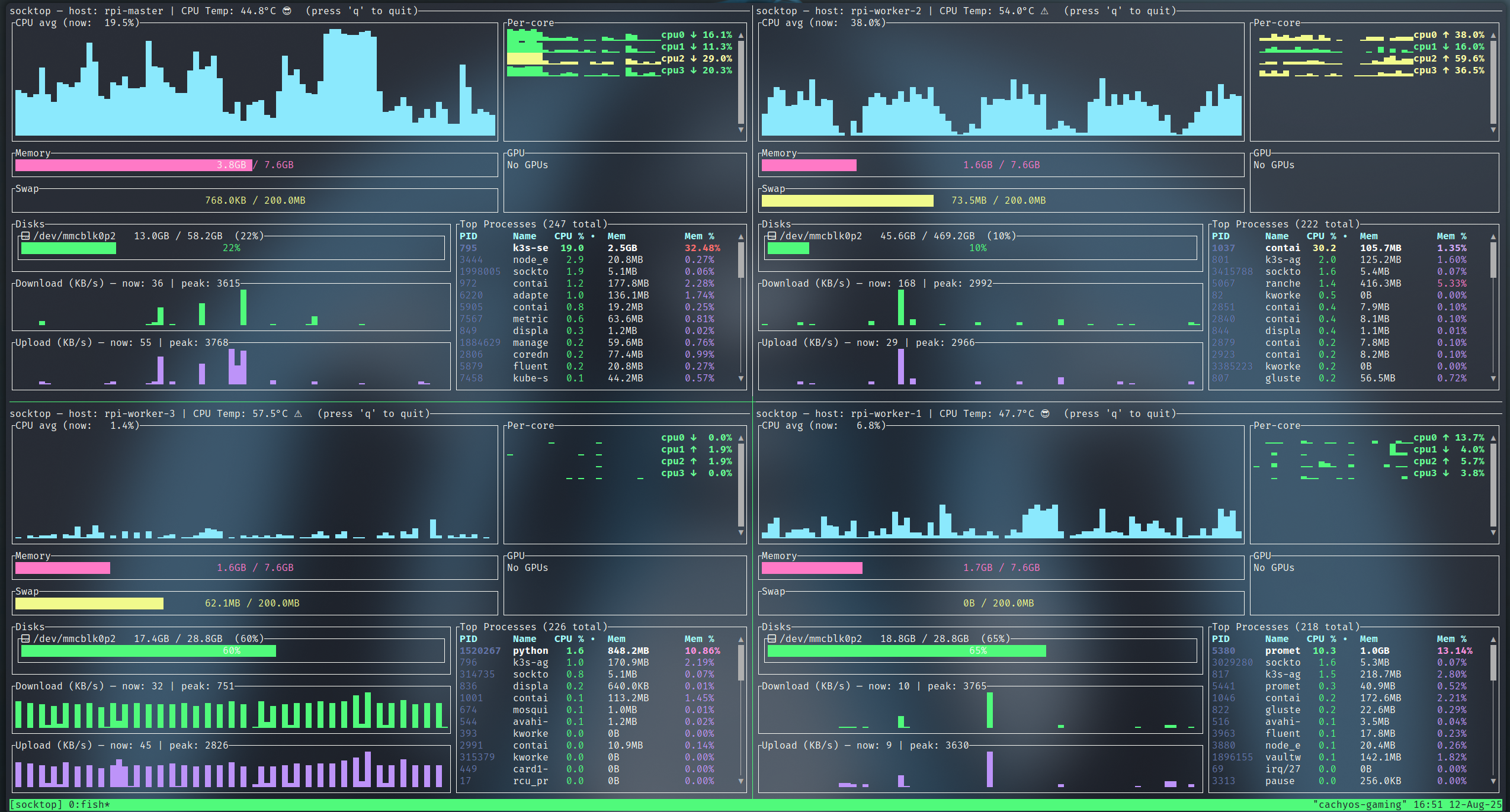
|
||||
*monitoring 4 Raspberry Pis using Tmux*
|
||||
|
||||
## Prerequisites
|
||||
|
||||
Install tmux:
|
||||
|
||||
```bash
|
||||
# Ubuntu/Debian
|
||||
sudo apt-get install tmux
|
||||
```
|
||||
|
||||
## Two panes (left/right)
|
||||
|
||||
This creates a session named "socktop", splits it horizontally, and starts two socktops.
|
||||
|
||||
```bash
|
||||
tmux new-session -d -s socktop 'socktop ws://HOST1:3000/ws' \; \
|
||||
split-window -h 'socktop ws://HOST2:3000/ws' \; \
|
||||
select-layout even-horizontal \; \
|
||||
attach
|
||||
```
|
||||
|
||||
## Four panes (2x2 grid)
|
||||
|
||||
This creates a 2x2 grid with one socktop per pane.
|
||||
|
||||
```bash
|
||||
tmux new-session -d -s socktop 'socktop ws://HOST1:3000/ws' \; \
|
||||
split-window -h 'socktop ws://HOST2:3000/ws' \; \
|
||||
select-pane -t 0 \; split-window -v 'socktop ws://HOST3:3000/ws' \; \
|
||||
select-pane -t 1 \; split-window -v 'socktop ws://HOST4:3000/ws' \; \
|
||||
select-layout tiled \; \
|
||||
attach
|
||||
```
|
||||
|
||||
## Tips
|
||||
|
||||
- Replace HOST1..HOST4 (and ports) with your targets
|
||||
- Reattach later: `tmux attach -t socktop`
|
||||
|
||||
## Key bindings (defaults)
|
||||
|
||||
- Split left/right: `Ctrl-b %`
|
||||
- Split top/bottom: `Ctrl-b "`
|
||||
- Move between panes: `Ctrl-b` + Arrow keys
|
||||
- Show pane numbers: `Ctrl-b q`
|
||||
- Close a pane: `Ctrl-b x`
|
||||
- Detach from session: `Ctrl-b d`
|
||||
|
||||
## More Info
|
||||
|
||||
For detailed tmux documentation, see the [tmux GitHub](https://github.com/tmux/tmux).
|
||||
@ -1,72 +0,0 @@
|
||||
# Monitor Multiple Hosts with Zellij
|
||||
|
||||
Use Zellij to monitor multiple socktop instances in a single terminal.
|
||||
|
||||
## Installation
|
||||
|
||||
```bash
|
||||
cargo install zellij
|
||||
```
|
||||
|
||||
## Example Layout
|
||||
|
||||
Create `socktop-layout.kdl`:
|
||||
|
||||
```kdl
|
||||
layout {
|
||||
pane split_direction="vertical" {
|
||||
pane command="socktop" {
|
||||
args "-P" "rpi-master"
|
||||
}
|
||||
pane command="socktop" {
|
||||
args "-P" "rpi-worker-1"
|
||||
}
|
||||
}
|
||||
pane split_direction="vertical" {
|
||||
pane command="socktop" {
|
||||
args "-P" "rpi-worker-2"
|
||||
}
|
||||
pane command="socktop" {
|
||||
args "-P" "rpi-worker-3"
|
||||
}
|
||||
}
|
||||
}
|
||||
```
|
||||
|
||||
Run it:
|
||||
|
||||
```bash
|
||||
zellij --layout socktop-layout.kdl
|
||||
```
|
||||
|
||||
## More Info
|
||||
|
||||
For detailed Zellij documentation, see [Zellij](https://zellij.dev/).
|
||||
|
||||
Create `~/.config/zellij/layouts/socktop-monitoring.kdl`:
|
||||
|
||||
```kdl
|
||||
layout {
|
||||
pane_template name="socktop_pane" {
|
||||
command "socktop"
|
||||
args "-P" "{profile}"
|
||||
}
|
||||
|
||||
pane split_direction="vertical" {
|
||||
pane split_direction="horizontal" {
|
||||
socktop_pane profile="production-web"
|
||||
socktop_pane profile="production-db"
|
||||
}
|
||||
pane split_direction="horizontal" {
|
||||
socktop_pane profile="staging-web"
|
||||
socktop_pane profile="staging-db"
|
||||
}
|
||||
}
|
||||
}
|
||||
```
|
||||
|
||||
### Use the Layout
|
||||
|
||||
```bash
|
||||
zellij --layout socktop-monitoring
|
||||
```
|
||||
@ -1,138 +0,0 @@
|
||||
# Agent Service Setup
|
||||
|
||||
## APT Installation
|
||||
|
||||
If you installed via APT, the service is already configured:
|
||||
|
||||
```bash
|
||||
sudo systemctl enable --now socktop-agent
|
||||
```
|
||||
|
||||
## Cargo Installation
|
||||
|
||||
System-wide agent setup:
|
||||
|
||||
```bash
|
||||
# If you installed with cargo, binaries are in ~/.cargo/bin
|
||||
sudo install -o root -g root -m 0755 "$HOME/.cargo/bin/socktop_agent" /usr/local/bin/socktop_agent
|
||||
|
||||
# Install and enable the systemd service (example unit in docs/)
|
||||
sudo install -o root -g root -m 0644 docs/socktop-agent.service /etc/systemd/system/socktop-agent.service
|
||||
sudo systemctl daemon-reload
|
||||
sudo systemctl enable --now socktop-agent
|
||||
```
|
||||
|
||||
## Enable SSL
|
||||
|
||||
```bash
|
||||
# Stop service
|
||||
sudo systemctl stop socktop-agent
|
||||
|
||||
# Edit service to append SSL option and port
|
||||
sudo nano /etc/systemd/system/socktop-agent.service
|
||||
|
||||
# Change ExecStart line to:
|
||||
# ExecStart=/usr/local/bin/socktop_agent --enableSSL --port 8443
|
||||
|
||||
# Reload
|
||||
sudo systemctl daemon-reload
|
||||
|
||||
# Restart
|
||||
sudo systemctl start socktop-agent
|
||||
|
||||
# Check logs for certificate location
|
||||
sudo journalctl -u socktop-agent -f
|
||||
|
||||
# Example output:
|
||||
# Aug 22 22:25:26 rpi-master socktop_agent[2913998]: socktop_agent: generated self-signed TLS certificate at /var/lib/socktop/.config/socktop_agent/tls/cert.pem
|
||||
```
|
||||
|
||||
## Configuration
|
||||
|
||||
Agent configuration via command-line flags or environment variables:
|
||||
|
||||
Port:
|
||||
- Flag: `--port 8080` or `-p 8080`
|
||||
- Positional: `socktop_agent 8080`
|
||||
- Env: `SOCKTOP_PORT=8080`
|
||||
|
||||
TLS (self-signed):
|
||||
- Enable: `--enableSSL`
|
||||
- Default TLS port: 8443 (override with `--port/-p`)
|
||||
- Certificate/Key location (created on first TLS run):
|
||||
- Linux (XDG): `$XDG_CONFIG_HOME/socktop_agent/tls/{cert.pem,key.pem}` (defaults to `~/.config`)
|
||||
- The agent prints these paths on creation
|
||||
```
|
||||
|
||||
Auth token (optional): `SOCKTOP_TOKEN=changeme`
|
||||
|
||||
Disable GPU metrics: `SOCKTOP_AGENT_GPU=0`
|
||||
|
||||
Disable CPU temperature: `SOCKTOP_AGENT_TEMP=0`
|
||||
|
||||
## Managing the Service
|
||||
|
||||
### Basic Commands
|
||||
|
||||
```bash
|
||||
# Start the service
|
||||
sudo systemctl start socktop-agent
|
||||
|
||||
# Stop the service
|
||||
sudo systemctl stop socktop-agent
|
||||
|
||||
# Restart the service
|
||||
sudo systemctl restart socktop-agent
|
||||
|
||||
# Reload configuration (if supported)
|
||||
sudo systemctl reload socktop-agent
|
||||
|
||||
# View service status
|
||||
sudo systemctl status socktop-agent
|
||||
|
||||
# Enable auto-start on boot
|
||||
sudo systemctl enable socktop-agent
|
||||
|
||||
# Disable auto-start on boot
|
||||
sudo systemctl disable socktop-agent
|
||||
|
||||
# Enable and start in one command
|
||||
sudo systemctl enable --now socktop-agent
|
||||
```
|
||||
|
||||
### Logs
|
||||
|
||||
```bash
|
||||
# Follow live logs
|
||||
sudo journalctl -u socktop-agent -f
|
||||
|
||||
# View recent logs
|
||||
sudo journalctl -u socktop-agent -n 50
|
||||
```
|
||||
|
||||
### Status
|
||||
|
||||
```bash
|
||||
# Check status
|
||||
sudo systemctl status socktop-agent --no-pager
|
||||
|
||||
# Is the service running?
|
||||
sudo systemctl is-active socktop-agent
|
||||
```
|
||||
|
||||
## Updating
|
||||
|
||||
```bash
|
||||
# On the server running the agent
|
||||
cargo install socktop_agent --force
|
||||
sudo systemctl stop socktop-agent
|
||||
sudo install -o root -g root -m 0755 "$HOME/.cargo/bin/socktop_agent" /usr/local/bin/socktop_agent
|
||||
# If you changed the unit file:
|
||||
# sudo install -o root -g root -m 0644 docs/socktop-agent.service /etc/systemd/system/socktop-agent.service
|
||||
# sudo systemctl daemon-reload
|
||||
sudo systemctl start socktop-agent
|
||||
sudo systemctl status socktop-agent --no-pager
|
||||
```
|
||||
|
||||
Tip: If only the binary changed, restart is enough. If the unit file changed, run `sudo systemctl daemon-reload`.
|
||||
```
|
||||
@ -1,105 +0,0 @@
|
||||
# Install via APT
|
||||
|
||||
The easiest way to install socktop on Debian and Ubuntu systems is through the official APT repository.
|
||||
|
||||
## Supported Systems
|
||||
|
||||
The APT repository supports:
|
||||
|
||||
- **Debian** 10+ (Buster and newer)
|
||||
- **Ubuntu** 20.04+ (Focal and newer)
|
||||
- **Raspberry Pi OS** (Debian-based)
|
||||
- **Other Debian derivatives**
|
||||
|
||||
### Supported Architectures
|
||||
|
||||
- **amd64** (x86_64)
|
||||
- **arm64** (aarch64)
|
||||
- **armhf** (ARMv7)
|
||||
- **riscv64** (experimental)
|
||||
|
||||
## Installation
|
||||
|
||||
### Step 1: Add GPG Signing Key
|
||||
|
||||
First, add the repository's GPG signing key to verify package authenticity:
|
||||
|
||||
```bash
|
||||
curl -fsSL https://jasonwitty.github.io/socktop/KEY.gpg | \
|
||||
sudo gpg --dearmor -o /usr/share/keyrings/socktop-archive-keyring.gpg
|
||||
```
|
||||
|
||||
This ensures that packages are cryptographically verified before installation.
|
||||
|
||||
### Step 2: Add APT Repository
|
||||
|
||||
Add the socktop repository to your system's sources list:
|
||||
|
||||
```bash
|
||||
echo "deb [signed-by=/usr/share/keyrings/socktop-archive-keyring.gpg] https://jasonwitty.github.io/socktop stable main" | \
|
||||
sudo tee /etc/apt/sources.list.d/socktop.list
|
||||
```
|
||||
|
||||
### Step 3: Update Package Lists
|
||||
|
||||
Refresh your package cache to include the new repository:
|
||||
|
||||
```bash
|
||||
sudo apt update
|
||||
```
|
||||
|
||||
### Step 4: Install Packages
|
||||
|
||||
Install socktop and the agent:
|
||||
|
||||
```bash
|
||||
# Install both client and agent
|
||||
sudo apt install socktop socktop-agent
|
||||
|
||||
# Or install individually
|
||||
sudo apt install socktop # TUI client only
|
||||
sudo apt install socktop-agent # Agent only
|
||||
```
|
||||
|
||||
## Automatic Service Setup
|
||||
|
||||
The APT package automatically configures the agent as a systemd service, but it's **not enabled by default**.
|
||||
|
||||
### Enable and Start the Agent
|
||||
|
||||
```bash
|
||||
# Enable the service to start at boot
|
||||
sudo systemctl enable socktop-agent
|
||||
|
||||
# Start the service now
|
||||
sudo systemctl start socktop-agent
|
||||
|
||||
# Or do both in one command
|
||||
sudo systemctl enable --now socktop-agent
|
||||
```
|
||||
|
||||
### Check Service Status
|
||||
|
||||
```bash
|
||||
# View service status
|
||||
sudo systemctl status socktop-agent
|
||||
|
||||
# View service logs
|
||||
sudo journalctl -u socktop-agent -f
|
||||
|
||||
# View recent logs
|
||||
sudo journalctl -u socktop-agent -n 50
|
||||
```
|
||||
|
||||
### Control the Service
|
||||
|
||||
```bash
|
||||
# Stop the service
|
||||
sudo systemctl stop socktop-agent
|
||||
|
||||
# Restart the service
|
||||
sudo systemctl restart socktop-agent
|
||||
|
||||
# Disable auto-start
|
||||
sudo systemctl disable socktop-agent
|
||||
```
|
||||
@ -1,138 +0,0 @@
|
||||
# Install via Cargo
|
||||
|
||||
Installing socktop via Cargo gives you access to the latest version and works on any Linux distribution with Rust installed.
|
||||
|
||||
## Prerequisites
|
||||
|
||||
Before installing via Cargo, ensure you have:
|
||||
|
||||
- **Rust 1.70 or newer** - Install via [rustup](https://rustup.rs/)
|
||||
- **Build dependencies** - See [Prerequisites](./prerequisites.md) for details
|
||||
- **GPU support libraries** - Required on all systems:
|
||||
```bash
|
||||
sudo apt install libdrm-dev libdrm-amdgpu1
|
||||
```
|
||||
|
||||
## Installation
|
||||
|
||||
### Installing the TUI Client
|
||||
|
||||
```bash
|
||||
cargo install socktop
|
||||
```
|
||||
|
||||
This will download, compile, and install the `socktop` binary to `~/.cargo/bin/`. Make sure this directory is in your `PATH`.
|
||||
|
||||
### Installing the Agent
|
||||
|
||||
```bash
|
||||
cargo install socktop-agent
|
||||
```
|
||||
|
||||
This installs the `socktop_agent` binary to `~/.cargo/bin/`.
|
||||
|
||||
### Installing Both (Recommended)
|
||||
|
||||
```bash
|
||||
cargo install socktop socktop-agent
|
||||
```
|
||||
|
||||
## Verify Installation
|
||||
|
||||
Check that the binaries are installed correctly:
|
||||
|
||||
```bash
|
||||
# Check socktop client
|
||||
socktop --version
|
||||
|
||||
# Check socktop agent
|
||||
socktop_agent --version
|
||||
```
|
||||
|
||||
You should see output like:
|
||||
```
|
||||
socktop 1.50.2
|
||||
```
|
||||
|
||||
## First Run
|
||||
|
||||
### Start the Agent
|
||||
|
||||
Start the agent in a separate terminal or background process:
|
||||
|
||||
```bash
|
||||
# Run in foreground (for testing)
|
||||
socktop_agent
|
||||
|
||||
# Run in background
|
||||
socktop_agent &
|
||||
|
||||
# Or with custom options
|
||||
socktop_agent --port 3000 --host 0.0.0.0
|
||||
```
|
||||
|
||||
### Connect with the Client
|
||||
|
||||
In another terminal, connect to the agent:
|
||||
|
||||
```bash
|
||||
# Monitor local system
|
||||
socktop
|
||||
|
||||
# Or explicitly specify the WebSocket URL
|
||||
socktop ws://localhost:3000
|
||||
```
|
||||
|
||||
## Configuration
|
||||
|
||||
### Agent Configuration
|
||||
|
||||
The agent accepts the following command-line arguments:
|
||||
|
||||
```bash
|
||||
socktop_agent --help
|
||||
```
|
||||
|
||||
Common options:
|
||||
- `--port <PORT>` - Port to listen on (default: 3000)
|
||||
- `--host <HOST>` - Host/IP to bind to (default: 0.0.0.0)
|
||||
- `--token <TOKEN>` - Authentication token (optional)
|
||||
- `--tls-cert <CERT>` - TLS certificate path (optional)
|
||||
- `--tls-key <KEY>` - TLS private key path (optional)
|
||||
|
||||
Example with custom configuration:
|
||||
```bash
|
||||
socktop_agent --port 8080 --token mySecretToken123
|
||||
```
|
||||
|
||||
### Client Configuration
|
||||
|
||||
The client can connect using various methods:
|
||||
|
||||
```bash
|
||||
# Local connection
|
||||
socktop
|
||||
|
||||
# Remote connection
|
||||
socktop ws://192.168.1.100:3000
|
||||
|
||||
# Secure connection with TLS
|
||||
socktop wss://secure-host:3000
|
||||
|
||||
# Using a connection profile
|
||||
socktop -P my-server
|
||||
```
|
||||
|
||||
See [Configuration](../usage/configuration.md) for details on setting up profiles.
|
||||
|
||||
## System-wide agent (Linux)
|
||||
|
||||
```bash
|
||||
# If you installed with cargo, binaries are in ~/.cargo/bin
|
||||
sudo install -o root -g root -m 0755 "$HOME/.cargo/bin/socktop_agent" /usr/local/bin/socktop_agent
|
||||
|
||||
# Install and enable the systemd service (example unit in docs/)
|
||||
sudo install -o root -g root -m 0644 docs/socktop-agent.service /etc/systemd/system/socktop-agent.service
|
||||
sudo systemctl daemon-reload
|
||||
sudo systemctl enable --now socktop-agent
|
||||
```
|
||||
@ -1,62 +0,0 @@
|
||||
# Prerequisites
|
||||
|
||||
## Supported Operating Systems
|
||||
|
||||
- **Debian** 10+
|
||||
- **Ubuntu** 20.04+
|
||||
- **Arch Linux** (latest)
|
||||
- **Fedora** 35+
|
||||
- **Raspberry Pi OS**
|
||||
- Other Linux distributions with kernel 4.15+
|
||||
- Windows 10+ (Binaries available in build artifacts)
|
||||
|
||||
#### Supported Architectures
|
||||
|
||||
- **amd64** (x86_64)
|
||||
- **arm64** (aarch64) - Raspberry Pi 4, AWS Graviton
|
||||
- **armhf** (ARMv7) - Raspberry Pi 3
|
||||
- **riscv64** (experimental)
|
||||
|
||||
## Software Dependencies
|
||||
|
||||
GPU support requires additional libraries:
|
||||
|
||||
```bash
|
||||
sudo apt update
|
||||
sudo apt install libdrm-dev libdrm-amdgpu1
|
||||
```
|
||||
|
||||
### For Cargo Installation
|
||||
|
||||
#### 1. Rust Toolchain
|
||||
|
||||
Rust 1.70+ required.
|
||||
|
||||
```bash
|
||||
# Install Rust via rustup (recommended)
|
||||
curl --proto '=https' --tlsv1.2 -sSf https://sh.rustup.rs | sh
|
||||
|
||||
# Verify installation
|
||||
rustc --version
|
||||
cargo --version
|
||||
|
||||
# Update if needed
|
||||
rustup update
|
||||
```
|
||||
|
||||
#### 2. Build Dependencies
|
||||
|
||||
**Debian/Ubuntu:**
|
||||
```bash
|
||||
sudo apt install build-essential pkg-config libssl-dev libdrm-dev libdrm-amdgpu1
|
||||
```
|
||||
|
||||
**Fedora:**
|
||||
```bash
|
||||
sudo dnf install gcc pkg-config openssl-devel
|
||||
```
|
||||
|
||||
**Arch Linux:**
|
||||
```bash
|
||||
sudo pacman -S base-devel openssl
|
||||
```
|
||||
@ -1,110 +0,0 @@
|
||||
# Quick Start
|
||||
|
||||
## Installation Methods
|
||||
|
||||
socktop can be installed via APT (Debian/Ubuntu), Cargo, or built from source.
|
||||
|
||||
## Option 1: APT Installation (Recommended for Debian/Ubuntu)
|
||||
|
||||
Debian/Ubuntu installation:
|
||||
|
||||
```bash
|
||||
# Add the repository's GPG signing key
|
||||
curl -fsSL https://jasonwitty.github.io/socktop/KEY.gpg | \
|
||||
sudo gpg --dearmor -o /usr/share/keyrings/socktop-archive-keyring.gpg
|
||||
|
||||
# Add the APT repository
|
||||
echo "deb [signed-by=/usr/share/keyrings/socktop-archive-keyring.gpg] https://jasonwitty.github.io/socktop stable main" | \
|
||||
sudo tee /etc/apt/sources.list.d/socktop.list
|
||||
|
||||
# Install socktop and the agent
|
||||
sudo apt install socktop socktop-agent
|
||||
|
||||
# Enable the agent service
|
||||
sudo systemctl enable --now socktop-agent
|
||||
```
|
||||
|
||||
Run `socktop` to monitor your local system or connect to remote agents.
|
||||
|
||||
## Option 2: Cargo Installation
|
||||
|
||||
Install from crates.io:
|
||||
|
||||
```bash
|
||||
# Install GPU support libraries (required)
|
||||
sudo apt install libdrm-dev libdrm-amdgpu1
|
||||
|
||||
# Install the TUI client
|
||||
cargo install socktop
|
||||
|
||||
# Install the agent
|
||||
cargo install socktop-agent
|
||||
|
||||
# Run the agent manually or set up as a service (see Agent Service Setup)
|
||||
socktop_agent
|
||||
```
|
||||
|
||||
## Demo Mode
|
||||
|
||||
Test socktop without setting up an agent:
|
||||
|
||||
```bash
|
||||
# If you have socktop installed
|
||||
socktop --demo
|
||||
|
||||
# Or just run socktop with no arguments and select 'demo' from the interactive menu
|
||||
socktop
|
||||
```
|
||||
|
||||
This spins up a temporary local agent on port 3231, connects to it, and stops when you quit (Ctrl-C or `q`).
|
||||
|
||||
## Usage
|
||||
|
||||
```bash
|
||||
# Quick demo (no agent setup needed)
|
||||
socktop --demo
|
||||
|
||||
# Monitor your local system (requires agent running)
|
||||
socktop
|
||||
|
||||
# Or connect to a remote agent
|
||||
socktop ws://hostname:3000/ws
|
||||
```
|
||||
|
||||
The TUI displays system metrics in real-time.
|
||||
|
||||
## Interactive Profile Selection
|
||||
|
||||
If you run `socktop` with no arguments, you'll see an interactive menu:
|
||||
|
||||
```
|
||||
Select profile:
|
||||
1. prod
|
||||
2. dev-server
|
||||
3. demo
|
||||
Enter number (or blank to abort):
|
||||
```
|
||||
|
||||
- Choose a numbered profile to connect to a saved server
|
||||
- Select `demo` to launch demo mode (always available)
|
||||
- Press Enter on blank to abort
|
||||
|
||||
## Monitoring Remote Systems
|
||||
|
||||
To monitor a remote system:
|
||||
|
||||
1. **Install the agent** on the target system (using APT or Cargo)
|
||||
2. **Start the agent** on the remote system:
|
||||
```bash
|
||||
# Via systemd (APT install)
|
||||
sudo systemctl start socktop-agent
|
||||
|
||||
# Or manually
|
||||
socktop_agent
|
||||
```
|
||||
3. **Connect from your client**:
|
||||
```bash
|
||||
socktop ws://remote-hostname:3000/ws
|
||||
```
|
||||
|
||||
Save frequently used connections as profiles. See [Connection Profiles](../usage/connection-profiles.md).
|
||||
@ -1,54 +0,0 @@
|
||||
# Upgrading
|
||||
|
||||
This guide covers upgrading socktop and socktop-agent to newer versions.
|
||||
|
||||
## Upgrading via APT
|
||||
|
||||
### Standard Upgrade
|
||||
|
||||
The easiest method - upgrade through normal system updates:
|
||||
|
||||
```bash
|
||||
# Update package lists
|
||||
sudo apt update
|
||||
|
||||
# Upgrade socktop packages
|
||||
sudo apt upgrade socktop socktop-agent
|
||||
|
||||
# Or upgrade entire system
|
||||
sudo apt upgrade
|
||||
```
|
||||
|
||||
The service will automatically restart after the upgrade.
|
||||
|
||||
### Verify Upgrade
|
||||
|
||||
```bash
|
||||
# Check new versions
|
||||
socktop --version
|
||||
socktop_agent --version
|
||||
|
||||
# Check service status
|
||||
sudo systemctl status socktop-agent
|
||||
|
||||
## Upgrading via Cargo
|
||||
|
||||
### Update from crates.io
|
||||
|
||||
```bash
|
||||
# Update client
|
||||
cargo install socktop --force
|
||||
|
||||
# Update agent
|
||||
# on the server running the agent
|
||||
cargo install socktop_agent --force
|
||||
sudo systemctl stop socktop-agent
|
||||
sudo install -o root -g root -m 0755 "$HOME/.cargo/bin/socktop_agent" /usr/local/bin/socktop_agent
|
||||
# if you changed the unit file:
|
||||
# sudo install -o root -g root -m 0644 docs/socktop-agent.service /etc/systemd/system/socktop-agent.service
|
||||
# sudo systemctl daemon-reload
|
||||
sudo systemctl start socktop-agent
|
||||
sudo systemctl status socktop-agent --no-pager
|
||||
# logs:
|
||||
# journalctl -u socktop-agent -f
|
||||
```
|
||||
@ -1,82 +0,0 @@
|
||||
# Introduction
|
||||
|
||||
|
||||
|
||||
**socktop** is a TUI-first remote system monitor built with Rust. Two components:
|
||||
|
||||
- **socktop (TUI Client)** - A terminal-based user interface for viewing system metrics
|
||||
- **socktop-agent** - A lightweight background service that collects and serves system metrics over WebSocket
|
||||
|
||||
## Features
|
||||
|
||||
- TUI built with ratatui, Catppuccin Frappe theme
|
||||
- CPU: overall sparkline + per-core bars, accurate per-process CPU% (normalized 0-100%)
|
||||
- Memory/Swap gauges
|
||||
- Disks: per-device usage
|
||||
- Network: per-interface throughput with sparklines
|
||||
- Temperatures: CPU (optional)
|
||||
- Top processes (top 50): sortable by CPU% or memory, scrollable
|
||||
- Optional GPU metrics
|
||||
- Remote monitoring via WebSocket (JSON over WS)
|
||||
- Optional WSS (TLS): agent auto-generates self-signed cert on first run, client pins cert via --tls-ca/-t
|
||||
- Optional auth token
|
||||
- Connection profiles for quick access to saved hosts
|
||||
- Built-in demo mode (--demo)
|
||||
|
||||
## Architecture
|
||||
|
||||
socktop uses a client-server architecture:
|
||||
|
||||
```
|
||||
┌─────────────────┐ WebSocket ┌──────────────────┐
|
||||
│ │ ◄────────────────────────► │ │
|
||||
│ socktop (TUI) │ (with TLS optional) │ socktop-agent │
|
||||
│ Client │ │ (Background) │
|
||||
│ │ │ │
|
||||
└─────────────────┘ └──────────────────┘
|
||||
│ │
|
||||
│ │
|
||||
▼ ▼
|
||||
User Terminal System Metrics
|
||||
Local or Remote (sysinfo crate)
|
||||
```
|
||||
|
||||
The agent runs on each system you want to monitor, collecting metrics using the `sysinfo` crate. The client connects to one or more agents to display real-time system information.
|
||||
|
||||
## Quick Demo
|
||||
|
||||
```bash
|
||||
socktop --demo
|
||||
```
|
||||
|
||||
Spins up a temporary local agent on port 3231 and connects to it. Stops automatically when you quit.
|
||||
|
||||
## Use Cases
|
||||
|
||||
- Remote server monitoring
|
||||
- Homelab / Raspberry Pi cluster monitoring
|
||||
- Development / testing resource usage
|
||||
- Custom dashboards via `socktop_connector` library
|
||||
|
||||
## Project Status
|
||||
|
||||
socktop is actively maintained and used in production environments. The project follows semantic versioning and maintains backward compatibility within major versions.
|
||||
|
||||
- **Current Version**: 1.50.x
|
||||
- **Minimum Rust Version**: 1.70+
|
||||
- **Supported Platforms**: Linux (amd64, arm64, armhf, riscv64)
|
||||
- **License**: MIT
|
||||
|
||||
## Community and Support
|
||||
|
||||
- **GitHub Repository**: [https://github.com/jasonwitty/socktop](https://github.com/jasonwitty/socktop)
|
||||
- **Issue Tracker**: Report bugs and request features on GitHub
|
||||
- **crates.io**:
|
||||
- [socktop](https://crates.io/crates/socktop) - TUI client
|
||||
- [socktop-agent](https://crates.io/crates/socktop-agent) - Background agent
|
||||
- [socktop-connector](https://crates.io/crates/socktop-connector) - Library for integrations
|
||||
- **APT Repository**: [https://jasonwitty.github.io/socktop/](https://jasonwitty.github.io/socktop/)
|
||||
|
||||
## Next Steps
|
||||
|
||||
See [Quick Start](./installation/quick-start.md) for installation.
|
||||

Binary file not shown.
|
Before Width: | Height: | Size: 1.2 MiB |
@ -1,116 +0,0 @@
|
||||
# TLS Configuration
|
||||
|
||||
Secure your socktop agent connections with TLS/SSL encryption.
|
||||
### Enable TLS (Auto-Generated Certificate)
|
||||
|
||||
The agent automatically generates a self-signed certificate on first run when you enable TLS:
|
||||
|
||||
```bash
|
||||
# The agent will auto-generate cert and key on first TLS run
|
||||
socktop_agent --enableSSL --port 8443
|
||||
```
|
||||
|
||||
The certificate is stored at:
|
||||
- **Linux (XDG)**: `$XDG_CONFIG_HOME/socktop_agent/tls/cert.pem` (defaults to `~/.config/socktop_agent/tls/`)
|
||||
- The agent prints the certificate location on first run
|
||||
|
||||
**Example output:**
|
||||
```
|
||||
socktop_agent: generated self-signed TLS certificate at /home/user/.config/socktop_agent/tls/cert.pem
|
||||
```
|
||||
|
||||
**Optional: Custom SANs (Subject Alternative Names)**
|
||||
|
||||
To include additional IPs or hostnames in the auto-generated certificate:
|
||||
|
||||
```bash
|
||||
SOCKTOP_AGENT_EXTRA_SANS="192.168.1.101,myhost.internal" socktop_agent --enableSSL --port 8443
|
||||
```
|
||||
|
||||
This prevents `NotValidForName` errors when connecting via IPs not in the default SAN list.
|
||||
|
||||
### Systemd Service with TLS
|
||||
|
||||
Edit `/etc/systemd/system/socktop-agent.service`:
|
||||
|
||||
```ini
|
||||
[Service]
|
||||
ExecStart=/usr/local/bin/socktop_agent --enableSSL --port 8443
|
||||
```
|
||||
|
||||
Reload and restart:
|
||||
|
||||
```bash
|
||||
sudo systemctl daemon-reload
|
||||
sudo systemctl restart socktop-agent
|
||||
|
||||
# Check logs for certificate location
|
||||
sudo journalctl -u socktop-agent -f
|
||||
```
|
||||
|
||||
### Connect with Client
|
||||
|
||||
Copy the auto-generated certificate from the agent to your client machine:
|
||||
|
||||
```bash
|
||||
# Copy certificate from agent host
|
||||
scp user@agent-host:~/.config/socktop_agent/tls/cert.pem ~/socktop-agent-cert.pem
|
||||
```
|
||||
|
||||
Connect with certificate pinning:
|
||||
|
||||
```bash
|
||||
# Connect with TLS and pin the server certificate
|
||||
socktop --tls-ca ~/socktop-agent-cert.pem wss://hostname:8443/ws
|
||||
|
||||
# Short form
|
||||
socktop -t ~/socktop-agent-cert.pem wss://hostname:8443/ws
|
||||
```
|
||||
|
||||
**Note:** Providing `--tls-ca/-t` automatically upgrades `ws://` to `wss://` if you forget the protocol.
|
||||
|
||||
|
||||
### Example Profile with SSL
|
||||
|
||||
```bash
|
||||
socktop wss://server:3000
|
||||
```
|
||||
|
||||
Profile:
|
||||
|
||||
```json
|
||||
File: /home/jasonw/.config/socktop/profiles.json
|
||||
{
|
||||
"profiles": {
|
||||
"local": {
|
||||
"url": "ws://127.0.0.1:3000/ws"
|
||||
},
|
||||
"rpi-master": {
|
||||
"url": "wss://rpi-master:8443/ws",
|
||||
"tls_ca": "/home/jasonw/.config/socktop/rpi-master.pem",
|
||||
"metrics_interval_ms": 1000,
|
||||
"processes_interval_ms": 5000
|
||||
},
|
||||
"rpi-worker-1": {
|
||||
"url": "wss://192.168.1.102:8443/ws",
|
||||
"tls_ca": "/home/jasonw/.config/socktop/rpi-worker-1.pem",
|
||||
"metrics_interval_ms": 1000,
|
||||
"processes_interval_ms": 5000
|
||||
},
|
||||
"rpi-worker-2": {
|
||||
"url": "ws://192.168.1.103:8443/ws",
|
||||
"tls_ca": "/home/jasonw/.config/socktop/rpi-worker-2.pem",
|
||||
"metrics_interval_ms": 1000,
|
||||
"processes_interval_ms": 5000
|
||||
},
|
||||
"rpi-worker-3": {
|
||||
"url": "ws://192.168.1.104:8443/ws",
|
||||
"tls_ca": "/home/jasonw/.config/socktop/rpi-worker-3.pem",
|
||||
"metrics_interval_ms": 1000,
|
||||
"processes_interval_ms": 5000
|
||||
}
|
||||
},
|
||||
"version": 0
|
||||
}
|
||||
|
||||
```
|
||||
@ -1,99 +0,0 @@
|
||||
# Authentication Token
|
||||
|
||||
This guide covers token-based authentication for securing socktop agent connections.
|
||||
|
||||
- **Access Control** - Only authorized clients can connect
|
||||
- **Security** - Prevent unauthorized monitoring of your systems
|
||||
- **Auditability** - Track which tokens are in use
|
||||
- **Flexibility** - Revoke and rotate tokens as needed
|
||||
|
||||
## Configuring Token Authentication
|
||||
|
||||
### Agent Configuration
|
||||
|
||||
#### APT Installation
|
||||
|
||||
Edit `/etc/default/socktop-agent`:
|
||||
|
||||
```bash
|
||||
sudo nano /etc/default/socktop-agent
|
||||
```
|
||||
|
||||
Add your token:
|
||||
|
||||
```bash
|
||||
# Authentication token
|
||||
TOKEN=7KJ9m3LnP4qR8sT2vW5xY6zA1bC3dE4fG7hI9jK0lM8=
|
||||
```
|
||||
|
||||
Restart the service:
|
||||
|
||||
```bash
|
||||
sudo systemctl restart socktop-agent
|
||||
```
|
||||
|
||||
#### Cargo Installation
|
||||
|
||||
Start the agent with the token:
|
||||
|
||||
```bash
|
||||
socktop_agent --token "7KJ9m3LnP4qR8sT2vW5xY6zA1bC3dE4fG7hI9jK0lM8="
|
||||
```
|
||||
|
||||
Or with systemd service:
|
||||
|
||||
```bash
|
||||
sudo systemctl edit socktop-agent
|
||||
```
|
||||
|
||||
Add environment variable:
|
||||
|
||||
```ini
|
||||
[Service]
|
||||
Environment="TOKEN=7KJ9m3LnP4qR8sT2vW5xY6zA1bC3dE4fG7hI9jK0lM8="
|
||||
```
|
||||
|
||||
```bash
|
||||
sudo systemctl daemon-reload
|
||||
sudo systemctl restart socktop-agent
|
||||
```
|
||||
|
||||
### Client Configuration
|
||||
|
||||
#### Command Line
|
||||
|
||||
```bash
|
||||
# Pass token via command line
|
||||
socktop ws://server:3000 -t "7KJ9m3LnP4qR8sT2vW5xY6zA1bC3dE4fG7hI9jK0lM8="
|
||||
```
|
||||
|
||||
#### Connection Profile
|
||||
|
||||
Add token to profile (`~/.config/socktop/profiles.json`):
|
||||
|
||||
```json
|
||||
{
|
||||
"profiles": {
|
||||
"secure-server": {
|
||||
"url": "ws://server.example.com:3000/ws?token=7KJ9m3LnP4qR8sT2vW5xY6zA1bC3dE4fG7hI9jK0lM8="
|
||||
}
|
||||
},
|
||||
"version": 0
|
||||
}
|
||||
```
|
||||
|
||||
Then connect:
|
||||
|
||||
```bash
|
||||
socktop -P secure-server
|
||||
```
|
||||
|
||||
#### Environment Variable
|
||||
|
||||
```bash
|
||||
# Set token in environment
|
||||
export SOCKTOP_TOKEN="7KJ9m3LnP4qR8sT2vW5xY6zA1bC3dE4fG7hI9jK0lM8="
|
||||
|
||||
# Connect without specifying token
|
||||
socktop ws://server:3000
|
||||
```
|
||||
@ -1,115 +0,0 @@
|
||||
# Configuration
|
||||
|
||||
This guide covers all configuration options for socktop client and agent.
|
||||
|
||||
## Client Configuration
|
||||
|
||||
### Configuration File Location
|
||||
|
||||
By default, socktop looks for configuration in:
|
||||
|
||||
- **Linux**: `~/.config/socktop/`
|
||||
- **Custom**: Set `XDG_CONFIG_HOME` environment variable
|
||||
|
||||
### Command-Line Options
|
||||
|
||||
```bash
|
||||
socktop_agent --help
|
||||
|
||||
OPTIONS:
|
||||
--port <PORT> Port to listen on [default: 3000]
|
||||
--host <HOST> Host/IP to bind to [default: 0.0.0.0]
|
||||
--token <TOKEN> Authentication token (optional)
|
||||
--tls-cert <FILE> TLS certificate path (optional)
|
||||
--tls-key <FILE> TLS private key path (optional)
|
||||
--log-level <LEVEL> Log level: error, warn, info, debug, trace
|
||||
--cache-duration <MS> Metrics cache duration in milliseconds [default: 1000]
|
||||
--max-processes <NUM> Maximum processes to report [default: 100]
|
||||
--enable-journald Enable journald log collection
|
||||
--journald-lines <NUM> Number of journal lines to keep [default: 1000]
|
||||
```
|
||||
|
||||
### Configuration File (APT Installation)
|
||||
|
||||
Edit `/etc/default/socktop-agent`:
|
||||
|
||||
```bash
|
||||
# Port configuration
|
||||
PORT=3000
|
||||
|
||||
# Bind address (0.0.0.0 for all interfaces, 127.0.0.1 for local only)
|
||||
HOST=0.0.0.0
|
||||
|
||||
# Authentication token
|
||||
# Uncomment and set for token-based auth
|
||||
# TOKEN=your-secret-token-here
|
||||
|
||||
# TLS configuration
|
||||
# Uncomment to enable TLS
|
||||
# TLS_CERT=/etc/socktop/cert.pem
|
||||
# TLS_KEY=/etc/socktop/key.pem
|
||||
|
||||
# Log level (error, warn, info, debug, trace)
|
||||
LOG_LEVEL=info
|
||||
|
||||
# Cache duration (milliseconds)
|
||||
CACHE_DURATION=1000
|
||||
|
||||
# Maximum processes to report
|
||||
MAX_PROCESSES=100
|
||||
|
||||
# Enable journald collection
|
||||
ENABLE_JOURNALD=false
|
||||
|
||||
# Additional options
|
||||
# OPTIONS="--some-option --another-option"
|
||||
```
|
||||
|
||||
After editing, restart the service:
|
||||
|
||||
```bash
|
||||
sudo systemctl restart socktop-agent
|
||||
```
|
||||
|
||||
### Environment Variables (debugging)
|
||||
|
||||
Override settings with environment variables:
|
||||
|
||||
```bash
|
||||
# Refresh rate
|
||||
export SOCKTOP_REFRESH_RATE=2000
|
||||
|
||||
# Default profile
|
||||
export SOCKTOP_DEFAULT_PROFILE=production
|
||||
|
||||
# Config directory
|
||||
export SOCKTOP_CONFIG_DIR=~/.config/socktop
|
||||
|
||||
# Disable TLS verification (not recommended)
|
||||
export SOCKTOP_NO_VERIFY_TLS=1
|
||||
|
||||
# Authentication token
|
||||
export SOCKTOP_TOKEN=your-secret-token
|
||||
```
|
||||
|
||||
### Agent Environment Variables (debugging)
|
||||
|
||||
```bash
|
||||
# Port
|
||||
export SOCKTOP_AGENT_PORT=3000
|
||||
|
||||
# Host
|
||||
export SOCKTOP_AGENT_HOST=0.0.0.0
|
||||
|
||||
# Token
|
||||
export SOCKTOP_AGENT_TOKEN=secret
|
||||
|
||||
# TLS cert path
|
||||
export SOCKTOP_AGENT_TLS_CERT=/path/to/cert.pem
|
||||
|
||||
# TLS key path
|
||||
export SOCKTOP_AGENT_TLS_KEY=/path/to/key.pem
|
||||
|
||||
# Log level
|
||||
export SOCKTOP_AGENT_LOG_LEVEL=info
|
||||
```
|
||||
@ -1,146 +0,0 @@
|
||||
# Connection Profiles
|
||||
|
||||
Connection profiles allow you to save frequently used agent connections for quick access.
|
||||
|
||||
## What are Connection Profiles?
|
||||
|
||||
Instead of typing the full WebSocket URL every time:
|
||||
|
||||
```bash
|
||||
socktop ws://production-server.example.com:3000
|
||||
```
|
||||
|
||||
You can save it as a profile and use:
|
||||
|
||||
```bash
|
||||
socktop -P production
|
||||
```
|
||||
|
||||
## Profile Configuration File
|
||||
|
||||
Profiles are stored in `~/.config/socktop/profiles.json` (or `$XDG_CONFIG_HOME/socktop/profiles.json`).
|
||||
|
||||
### Basic Profile Format
|
||||
|
||||
```json
|
||||
{
|
||||
"profiles": {
|
||||
"production": {
|
||||
"url": "ws://production-server:3000/ws"
|
||||
},
|
||||
"dev": {
|
||||
"url": "ws://dev-server:3000/ws"
|
||||
},
|
||||
"rpi": {
|
||||
"url": "ws://192.168.1.100:3000/ws"
|
||||
}
|
||||
},
|
||||
"version": 0
|
||||
}
|
||||
```
|
||||
|
||||
### Profile with Authentication
|
||||
|
||||
```json
|
||||
{
|
||||
"profiles": {
|
||||
"secure-server": {
|
||||
"url": "wss://secure.example.com:3000/ws?token=your-secret-token-here"
|
||||
}
|
||||
},
|
||||
"version": 0
|
||||
}
|
||||
```
|
||||
|
||||
**Note:** Tokens are passed as query parameters in the URL.
|
||||
|
||||
### Profile with TLS Configuration
|
||||
|
||||
```json
|
||||
{
|
||||
"profiles": {
|
||||
"tls-server": {
|
||||
"url": "wss://tls-server.example.com:8443/ws",
|
||||
"tls_ca": "/path/to/cert.pem"
|
||||
}
|
||||
},
|
||||
"version": 0
|
||||
}
|
||||
```
|
||||
|
||||
### Profile with All Options
|
||||
|
||||
```json
|
||||
{
|
||||
"profiles": {
|
||||
"full-config": {
|
||||
"url": "wss://example.com:8443/ws?token=secret-token",
|
||||
"tls_ca": "/etc/socktop/cert.pem",
|
||||
"metrics_interval_ms": 750,
|
||||
"processes_interval_ms": 3000
|
||||
}
|
||||
},
|
||||
"version": 0
|
||||
}
|
||||
```
|
||||
|
||||
**Note:** Custom intervals are optional. Values below 100ms (metrics) or 200ms (processes) are clamped.
|
||||
|
||||
## Creating Profiles
|
||||
|
||||
### Method 1: Manual Creation
|
||||
|
||||
Create or edit the profiles file:
|
||||
|
||||
```bash
|
||||
mkdir -p ~/.config/socktop
|
||||
nano ~/.config/socktop/profiles.json
|
||||
```
|
||||
|
||||
Add your profiles:
|
||||
|
||||
```json
|
||||
{
|
||||
"profiles": {
|
||||
"homelab": {
|
||||
"url": "ws://192.168.1.50:3000/ws"
|
||||
},
|
||||
"cloud-server": {
|
||||
"url": "wss://cloud.example.com:8443/ws?token=abc123xyz",
|
||||
"tls_ca": "/home/user/.config/socktop/cloud-cert.pem"
|
||||
}
|
||||
},
|
||||
"version": 0
|
||||
}
|
||||
```
|
||||
|
||||
### Method 2: Automatic Profile Creation
|
||||
|
||||
When you specify a new `--profile/-P` name with a URL (and optional `--tls-ca`), it's saved automatically:
|
||||
|
||||
```bash
|
||||
# First connection creates and saves the profile
|
||||
socktop --profile prod ws://prod-host:3000/ws
|
||||
|
||||
# With TLS pinning
|
||||
socktop --profile prod-tls --tls-ca /path/to/cert.pem wss://prod-host:8443/ws
|
||||
|
||||
# With custom intervals
|
||||
socktop --profile fast --metrics-interval-ms 250 --processes-interval-ms 1000 ws://host:3000/ws
|
||||
```
|
||||
|
||||
To overwrite an existing profile without prompt, use `--save`:
|
||||
|
||||
```bash
|
||||
socktop --profile prod --save ws://new-host:3000/ws
|
||||
```
|
||||
|
||||
## Using Profiles
|
||||
|
||||
### Basic Usage
|
||||
|
||||
```bash
|
||||
# Use a saved profile
|
||||
socktop -P production
|
||||
socktop --profile homelab
|
||||
```
|
||||
@ -1,115 +0,0 @@
|
||||
# General Usage
|
||||
|
||||
## Starting socktop
|
||||
|
||||
### Demo Mode
|
||||
|
||||
Try socktop without any setup:
|
||||
|
||||
```bash
|
||||
# Launch demo mode
|
||||
socktop --demo
|
||||
```
|
||||
|
||||
Starts a temporary local agent on port 3231, connects to it, and monitors your local system. The agent stops when you quit (you'll see "Stopped demo agent on port 3231").
|
||||
|
||||
### Interactive Mode
|
||||
|
||||
Run `socktop` with no arguments to see an interactive profile menu (if you have saved profiles):
|
||||
|
||||
```
|
||||
Select profile:
|
||||
1. prod
|
||||
2. dev-server
|
||||
3. demo
|
||||
Enter number (or blank to abort):
|
||||
```
|
||||
|
||||
Select a number to connect, or choose `demo` (always available). Press Enter on blank to abort.
|
||||
|
||||
### Monitor Remote System
|
||||
|
||||
Connect to a remote agent by specifying the WebSocket URL:
|
||||
|
||||
```bash
|
||||
socktop ws://hostname:3000/ws
|
||||
socktop ws://192.168.1.100:3000/ws
|
||||
socktop wss://secure-host:8443/ws # With TLS
|
||||
```
|
||||
|
||||
### Using Connection Profiles
|
||||
|
||||
For frequently monitored systems, use profiles:
|
||||
|
||||
```bash
|
||||
# Use a saved profile
|
||||
socktop -P production-server
|
||||
socktop -P rpi-cluster-01
|
||||
|
||||
# List available profiles
|
||||
socktop --list-profiles
|
||||
```
|
||||
|
||||
See [Connection Profiles](./connection-profiles.md).
|
||||
|
||||
## Keyboard and Mouse
|
||||
|
||||
### Keyboard
|
||||
|
||||
- Quit: `q` or `Esc`
|
||||
|
||||
### Mouse (Processes pane)
|
||||
|
||||
- Click "CPU %" to sort by CPU descending
|
||||
- Click "Mem" to sort by memory descending
|
||||
- Mouse wheel: scroll
|
||||
- Drag scrollbar: scroll
|
||||
- Arrow/PageUp/PageDown/Home/End: scroll
|
||||
|
||||
### Filtering Processes
|
||||
|
||||
Press `/` to enter filter mode:
|
||||
|
||||
```
|
||||
Filter: pyth_
|
||||
```
|
||||
|
||||
This will show only processes matching "pyth" (case-insensitive). Press `ESC` to clear filter.
|
||||
|
||||
## Command Line Options
|
||||
|
||||
### Client Options
|
||||
|
||||
```bash
|
||||
socktop [OPTIONS] [URL]
|
||||
|
||||
OPTIONS:
|
||||
-P, --profile <PROFILE> Use a connection profile
|
||||
-t, --token <TOKEN> Authentication token
|
||||
--tls-ca <FILE> CA certificate for TLS verification
|
||||
--verify-hostname Enable strict hostname verification for TLS
|
||||
--metrics-interval-ms <MS> Fast metrics polling interval (default: 500)
|
||||
--processes-interval-ms <MS> Process list polling interval (default: 2000)
|
||||
--list-profiles List available connection profiles
|
||||
-h, --help Show help information
|
||||
-V, --version Show version information
|
||||
|
||||
ARGUMENTS:
|
||||
[URL] WebSocket URL (e.g., ws://host:3000)
|
||||
```
|
||||
|
||||
### Examples
|
||||
|
||||
```bash
|
||||
# Connect with custom intervals
|
||||
socktop ws://server:3000 --metrics-interval-ms 750 --processes-interval-ms 3000
|
||||
|
||||
# Connect with authentication token
|
||||
socktop ws://server:3000 -t mySecretToken
|
||||
|
||||
# Connect with TLS and custom CA
|
||||
socktop wss://server:3000 --tls-ca /path/to/ca.pem
|
||||
|
||||
# Connect with TLS and hostname verification
|
||||
socktop wss://server:3000 --tls-ca /path/to/ca.pem --verify-hostname
|
||||
```
|
||||
@ -1,48 +0,0 @@
|
||||
# Keyboard and Mouse Controls
|
||||
|
||||
## Keyboard
|
||||
|
||||
### Global
|
||||
- Quit: `q` or `Esc`
|
||||
- About: `a`
|
||||
- Help: `h`
|
||||
|
||||
### Processes
|
||||
- `/` - Start fuzzy search
|
||||
- `c` - Clear search filter
|
||||
- `↑/↓` - Navigate
|
||||
- `Enter` - Open details
|
||||
- `x` - Clear selection
|
||||
|
||||
### Search (after /)
|
||||
- Type - Enter query (fuzzy match)
|
||||
- `↑/↓` - Navigate results
|
||||
- `Esc` - Cancel
|
||||
- `Enter` - Apply filter
|
||||
|
||||
### CPU Per-Core
|
||||
- `←/→` - Scroll cores
|
||||
- `PgUp/PgDn` - Page up/down
|
||||
- `Home/End` - Jump to first/last
|
||||
|
||||
### Process Details
|
||||
- `x` - Close
|
||||
- `p` - Navigate to parent
|
||||
- `j/k` - Scroll threads ↓/↑
|
||||
- `d/u` - Scroll threads (10 lines)
|
||||
- `[` / `]` - Scroll journal
|
||||
- `Esc/Enter` - Close
|
||||
|
||||
### Modal Navigation
|
||||
- `Tab/→` - Next button
|
||||
- `Shift+Tab/←` - Previous button
|
||||
- `Enter` - Confirm
|
||||
- `Esc` - Cancel
|
||||
|
||||
## Mouse (Processes pane)
|
||||
|
||||
- Click "CPU %" to sort by CPU descending
|
||||
- Click "Mem" to sort by memory descending
|
||||
- Mouse wheel: scroll
|
||||
- Drag scrollbar: scroll
|
||||
- Arrow/PageUp/PageDown/Home/End: scroll
|
||||
226
docs/theme/catppuccin-themes.js
vendored
226
docs/theme/catppuccin-themes.js
vendored
@ -1,226 +0,0 @@
|
||||
// Replace default mdBook themes with Catppuccin themes
|
||||
(function () {
|
||||
"use strict";
|
||||
|
||||
// Wait for DOM to be ready
|
||||
if (document.readyState === "loading") {
|
||||
document.addEventListener("DOMContentLoaded", init);
|
||||
} else {
|
||||
init();
|
||||
}
|
||||
|
||||
function init() {
|
||||
addSidebarLogo();
|
||||
replaceThemeList();
|
||||
setupGhosttyStyleSidebar();
|
||||
|
||||
// Watch for sidebar changes and re-run setup
|
||||
const sidebarScrollbox = document.querySelector(".sidebar-scrollbox");
|
||||
if (sidebarScrollbox) {
|
||||
const observer = new MutationObserver(() => {
|
||||
// Wait a bit for mdBook to finish updating
|
||||
setTimeout(setupGhosttyStyleSidebar, 50);
|
||||
});
|
||||
observer.observe(sidebarScrollbox, {
|
||||
childList: true,
|
||||
subtree: true,
|
||||
});
|
||||
}
|
||||
|
||||
// Also re-run on page navigation
|
||||
window.addEventListener("hashchange", () => {
|
||||
setTimeout(setupGhosttyStyleSidebar, 100);
|
||||
});
|
||||
}
|
||||
|
||||
function addSidebarLogo() {
|
||||
const scrollbox = document.querySelector(".sidebar-scrollbox");
|
||||
if (!scrollbox) {
|
||||
return;
|
||||
}
|
||||
|
||||
// Check if logo already exists
|
||||
if (document.querySelector(".sidebar-logo")) {
|
||||
return;
|
||||
}
|
||||
|
||||
// Create logo container
|
||||
const logoContainer = document.createElement("div");
|
||||
logoContainer.className = "sidebar-logo";
|
||||
|
||||
// Create clickable link wrapper
|
||||
const logoLink = document.createElement("a");
|
||||
logoLink.href = "https://socktop.io";
|
||||
logoLink.style.display = "block";
|
||||
logoLink.style.textAlign = "center";
|
||||
|
||||
// Create logo image
|
||||
const logoImg = document.createElement("img");
|
||||
// Use root-relative path that works from any page depth
|
||||
logoImg.src = window.location.pathname.includes("/assets/docs/")
|
||||
? "/assets/docs/logo.png"
|
||||
: "logo.png";
|
||||
logoImg.alt = "socktop";
|
||||
logoImg.style.display = "inline-block";
|
||||
logoImg.style.maxWidth = "80%";
|
||||
|
||||
logoLink.appendChild(logoImg);
|
||||
logoContainer.appendChild(logoLink);
|
||||
|
||||
// Insert as the very first child inside the scrollbox
|
||||
scrollbox.insertBefore(logoContainer, scrollbox.firstChild);
|
||||
}
|
||||
|
||||
function replaceThemeList() {
|
||||
const themeList = document.getElementById("mdbook-theme-list");
|
||||
if (!themeList) {
|
||||
console.warn("Theme list not found");
|
||||
return;
|
||||
}
|
||||
|
||||
// Clear existing themes
|
||||
themeList.innerHTML = "";
|
||||
|
||||
// Catppuccin themes
|
||||
const catppuccinThemes = [
|
||||
{ id: "latte", name: "Latte" },
|
||||
{ id: "frappe", name: "Frappé" },
|
||||
{ id: "macchiato", name: "Macchiato" },
|
||||
{ id: "mocha", name: "Mocha" },
|
||||
];
|
||||
|
||||
// Add Catppuccin themes
|
||||
catppuccinThemes.forEach((theme) => {
|
||||
const li = document.createElement("li");
|
||||
li.setAttribute("role", "none");
|
||||
|
||||
const button = document.createElement("button");
|
||||
button.setAttribute("role", "menuitem");
|
||||
button.className = "theme";
|
||||
button.id = "mdbook-theme-" + theme.id;
|
||||
button.textContent = theme.name;
|
||||
|
||||
li.appendChild(button);
|
||||
themeList.appendChild(li);
|
||||
});
|
||||
}
|
||||
|
||||
function setupGhosttyStyleSidebar() {
|
||||
// Hide mdBook's default fold toggles
|
||||
const defaultToggles = document.querySelectorAll(".chapter-fold-toggle");
|
||||
defaultToggles.forEach((toggle) => {
|
||||
toggle.style.display = "none";
|
||||
});
|
||||
|
||||
// Get current page path to determine active item
|
||||
const currentPath = window.location.pathname;
|
||||
|
||||
// Find all chapter items
|
||||
const allChapterItems = document.querySelectorAll(
|
||||
"ol.chapter > li.chapter-item",
|
||||
);
|
||||
|
||||
allChapterItems.forEach((li) => {
|
||||
// Check if this item has a nested section list
|
||||
const nestedList = li.querySelector("ol.section");
|
||||
|
||||
// Skip if no nested list (like Introduction)
|
||||
if (!nestedList) {
|
||||
return;
|
||||
}
|
||||
|
||||
const linkWrapper = li.querySelector("span.chapter-link-wrapper");
|
||||
const link = linkWrapper ? linkWrapper.querySelector("a") : null;
|
||||
|
||||
if (!linkWrapper) {
|
||||
return;
|
||||
}
|
||||
|
||||
// Check if any child link matches current page
|
||||
let hasActivePage = false;
|
||||
const childLinks = nestedList.querySelectorAll("a");
|
||||
childLinks.forEach((childLink) => {
|
||||
const href = childLink.getAttribute("href");
|
||||
if (
|
||||
href &&
|
||||
currentPath.includes(href.replace("../", "").replace("./", ""))
|
||||
) {
|
||||
childLink.closest("li.chapter-item").classList.add("active");
|
||||
hasActivePage = true;
|
||||
}
|
||||
});
|
||||
|
||||
// Skip if we already added a chevron - just update state
|
||||
const existingChevron = linkWrapper.querySelector(".chapter-chevron");
|
||||
if (existingChevron) {
|
||||
if (hasActivePage) {
|
||||
nestedList.style.display = "block";
|
||||
li.classList.add("expanded");
|
||||
li.classList.remove("collapsed");
|
||||
existingChevron.style.transform = "rotate(90deg)";
|
||||
}
|
||||
return;
|
||||
}
|
||||
|
||||
// Create custom chevron
|
||||
const chevron = document.createElement("span");
|
||||
chevron.className = "chapter-chevron";
|
||||
chevron.textContent = "›";
|
||||
chevron.style.cssText =
|
||||
"float: right; transition: transform 0.2s ease; display: inline-block; opacity: 0.6; font-size: 1.2em; line-height: 1; user-select: none; cursor: pointer;";
|
||||
|
||||
// Insert chevron into the link wrapper
|
||||
linkWrapper.appendChild(chevron);
|
||||
|
||||
// Start expanded if it contains the active page, collapsed otherwise
|
||||
if (hasActivePage) {
|
||||
nestedList.style.display = "block";
|
||||
li.classList.add("expanded");
|
||||
li.classList.remove("collapsed");
|
||||
chevron.style.transform = "rotate(90deg)";
|
||||
} else {
|
||||
nestedList.style.display = "none";
|
||||
li.classList.add("collapsed");
|
||||
li.classList.remove("expanded");
|
||||
chevron.style.transform = "rotate(0deg)";
|
||||
}
|
||||
|
||||
// Add click handler to toggle
|
||||
const toggleSection = function (e) {
|
||||
e.preventDefault();
|
||||
e.stopPropagation();
|
||||
|
||||
const isCollapsed = li.classList.contains("collapsed");
|
||||
|
||||
if (isCollapsed) {
|
||||
// Expand
|
||||
nestedList.style.display = "block";
|
||||
li.classList.remove("collapsed");
|
||||
li.classList.add("expanded");
|
||||
chevron.style.transform = "rotate(90deg)";
|
||||
} else {
|
||||
// Collapse
|
||||
nestedList.style.display = "none";
|
||||
li.classList.add("collapsed");
|
||||
li.classList.remove("expanded");
|
||||
chevron.style.transform = "rotate(0deg)";
|
||||
}
|
||||
};
|
||||
|
||||
// Click on chevron toggles
|
||||
chevron.addEventListener("click", toggleSection);
|
||||
|
||||
// Click on parent link also toggles if it's a dummy link
|
||||
if (link) {
|
||||
const href = link.getAttribute("href");
|
||||
if (!href || href === "" || href === "#") {
|
||||
link.addEventListener("click", toggleSection);
|
||||
link.style.cursor = "pointer";
|
||||
}
|
||||
} else {
|
||||
linkWrapper.addEventListener("click", toggleSection);
|
||||
linkWrapper.style.cursor = "pointer";
|
||||
}
|
||||
});
|
||||
}
|
||||
})();
|
||||
1102
docs/theme/catppuccin.css
vendored
1102
docs/theme/catppuccin.css
vendored
File diff suppressed because it is too large
Load Diff
365
docs/theme/index.hbs
vendored
365
docs/theme/index.hbs
vendored
@ -1,365 +0,0 @@
|
||||
<!DOCTYPE HTML>
|
||||
<html lang="{{ language }}" class="{{ default_theme }} sidebar-visible" dir="{{ text_direction }}">
|
||||
<head>
|
||||
<!-- Book generated using mdBook -->
|
||||
<meta charset="UTF-8">
|
||||
<title>{{ title }}</title>
|
||||
{{#if is_print }}
|
||||
<meta name="robots" content="noindex">
|
||||
{{/if}}
|
||||
{{#if base_url}}
|
||||
<base href="{{ base_url }}">
|
||||
{{/if}}
|
||||
|
||||
|
||||
<!-- Custom HTML head -->
|
||||
{{> head}}
|
||||
|
||||
<meta name="description" content="{{ description }}">
|
||||
<meta name="viewport" content="width=device-width, initial-scale=1">
|
||||
<meta name="theme-color" content="#ffffff">
|
||||
|
||||
{{#if favicon_svg}}
|
||||
<link rel="icon" href="{{ resource "favicon.svg" }}">
|
||||
{{/if}}
|
||||
{{#if favicon_png}}
|
||||
<link rel="shortcut icon" href="{{ resource "favicon.png" }}">
|
||||
{{/if}}
|
||||
<link rel="stylesheet" href="{{ resource "css/variables.css" }}">
|
||||
<link rel="stylesheet" href="{{ resource "css/general.css" }}">
|
||||
<link rel="stylesheet" href="{{ resource "css/chrome.css" }}">
|
||||
{{#if print_enable}}
|
||||
<link rel="stylesheet" href="{{ resource "css/print.css" }}" media="print">
|
||||
{{/if}}
|
||||
|
||||
<!-- Fonts -->
|
||||
<link rel="stylesheet" href="{{ resource "fonts/fonts.css" }}">
|
||||
|
||||
<!-- Highlight.js Stylesheets -->
|
||||
<link rel="stylesheet" id="mdbook-highlight-css" href="{{ resource "highlight.css" }}">
|
||||
<link rel="stylesheet" id="mdbook-tomorrow-night-css" href="{{ resource "tomorrow-night.css" }}">
|
||||
<link rel="stylesheet" id="mdbook-ayu-highlight-css" href="{{ resource "ayu-highlight.css" }}">
|
||||
|
||||
<!-- Custom theme stylesheets -->
|
||||
{{#each additional_css}}
|
||||
<link rel="stylesheet" href="{{ resource this }}">
|
||||
{{/each}}
|
||||
|
||||
{{#if mathjax_support}}
|
||||
<!-- MathJax -->
|
||||
<script async src="https://cdnjs.cloudflare.com/ajax/libs/mathjax/2.7.1/MathJax.js?config=TeX-AMS-MML_HTMLorMML"></script>
|
||||
{{/if}}
|
||||
|
||||
<!-- Provide site root and default themes to javascript -->
|
||||
<script>
|
||||
const path_to_root = "{{ path_to_root }}";
|
||||
const default_light_theme = "{{ default_theme }}";
|
||||
const default_dark_theme = "{{ preferred_dark_theme }}";
|
||||
{{#if search_js}}
|
||||
window.path_to_searchindex_js = "{{ resource "searchindex.js" }}";
|
||||
{{/if}}
|
||||
</script>
|
||||
<!-- Start loading toc.js asap -->
|
||||
<script src="{{ resource "toc.js" }}"></script>
|
||||
</head>
|
||||
<body>
|
||||
<div id="mdbook-help-container">
|
||||
<div id="mdbook-help-popup">
|
||||
<h2 class="mdbook-help-title">Keyboard shortcuts</h2>
|
||||
<div>
|
||||
<p>Press <kbd>←</kbd> or <kbd>→</kbd> to navigate between chapters</p>
|
||||
{{#if search_enabled}}
|
||||
<p>Press <kbd>S</kbd> or <kbd>/</kbd> to search in the book</p>
|
||||
{{/if}}
|
||||
<p>Press <kbd>?</kbd> to show this help</p>
|
||||
<p>Press <kbd>Esc</kbd> to hide this help</p>
|
||||
</div>
|
||||
</div>
|
||||
</div>
|
||||
<div id="mdbook-body-container">
|
||||
<!-- Work around some values being stored in localStorage wrapped in quotes -->
|
||||
<script>
|
||||
try {
|
||||
let theme = localStorage.getItem('mdbook-theme');
|
||||
let sidebar = localStorage.getItem('mdbook-sidebar');
|
||||
|
||||
if (theme.startsWith('"') && theme.endsWith('"')) {
|
||||
localStorage.setItem('mdbook-theme', theme.slice(1, theme.length - 1));
|
||||
}
|
||||
|
||||
if (sidebar.startsWith('"') && sidebar.endsWith('"')) {
|
||||
localStorage.setItem('mdbook-sidebar', sidebar.slice(1, sidebar.length - 1));
|
||||
}
|
||||
} catch (e) { }
|
||||
</script>
|
||||
|
||||
<!-- Set the theme before any content is loaded, prevents flash -->
|
||||
<script>
|
||||
const default_theme = window.matchMedia("(prefers-color-scheme: dark)").matches ? default_dark_theme : default_light_theme;
|
||||
let theme;
|
||||
try { theme = localStorage.getItem('mdbook-theme'); } catch(e) { }
|
||||
if (theme === null || theme === undefined) { theme = default_theme; }
|
||||
const html = document.documentElement;
|
||||
html.classList.remove('{{ default_theme }}')
|
||||
html.classList.add(theme);
|
||||
html.classList.add("js");
|
||||
</script>
|
||||
|
||||
<input type="checkbox" id="mdbook-sidebar-toggle-anchor" class="hidden">
|
||||
|
||||
<!-- Hide / unhide sidebar before it is displayed -->
|
||||
<script>
|
||||
let sidebar = null;
|
||||
const sidebar_toggle = document.getElementById("mdbook-sidebar-toggle-anchor");
|
||||
if (document.body.clientWidth >= 1080) {
|
||||
try { sidebar = localStorage.getItem('mdbook-sidebar'); } catch(e) { }
|
||||
sidebar = sidebar || 'visible';
|
||||
} else {
|
||||
sidebar = 'hidden';
|
||||
sidebar_toggle.checked = false;
|
||||
}
|
||||
if (sidebar === 'visible') {
|
||||
sidebar_toggle.checked = true;
|
||||
} else {
|
||||
html.classList.remove('sidebar-visible');
|
||||
}
|
||||
</script>
|
||||
|
||||
<nav id="mdbook-sidebar" class="sidebar" aria-label="Table of contents">
|
||||
<!-- populated by js -->
|
||||
<mdbook-sidebar-scrollbox class="sidebar-scrollbox"></mdbook-sidebar-scrollbox>
|
||||
<noscript>
|
||||
<iframe class="sidebar-iframe-outer" src="{{ path_to_root }}toc.html"></iframe>
|
||||
</noscript>
|
||||
<div id="mdbook-sidebar-resize-handle" class="sidebar-resize-handle">
|
||||
<div class="sidebar-resize-indicator"></div>
|
||||
</div>
|
||||
</nav>
|
||||
|
||||
<div id="mdbook-page-wrapper" class="page-wrapper">
|
||||
|
||||
<div class="page">
|
||||
{{> header}}
|
||||
<div id="mdbook-menu-bar-hover-placeholder"></div>
|
||||
<div id="mdbook-menu-bar" class="menu-bar sticky">
|
||||
<div class="left-buttons">
|
||||
<label id="mdbook-sidebar-toggle" class="icon-button" for="mdbook-sidebar-toggle-anchor" title="Toggle Table of Contents" aria-label="Toggle Table of Contents" aria-controls="mdbook-sidebar">
|
||||
{{fa "solid" "bars"}}
|
||||
</label>
|
||||
<button id="mdbook-theme-toggle" class="icon-button" type="button" title="Change theme" aria-label="Change theme" aria-haspopup="true" aria-expanded="false" aria-controls="mdbook-theme-list">
|
||||
{{fa "solid" "paintbrush"}}
|
||||
</button>
|
||||
<ul id="mdbook-theme-list" class="theme-popup" aria-label="Themes" role="menu">
|
||||
<li role="none"><button role="menuitem" class="theme" id="mdbook-theme-latte">Latte</button></li>
|
||||
<li role="none"><button role="menuitem" class="theme" id="mdbook-theme-frappe">Frappé</button></li>
|
||||
<li role="none"><button role="menuitem" class="theme" id="mdbook-theme-macchiato">Macchiato</button></li>
|
||||
<li role="none"><button role="menuitem" class="theme" id="mdbook-theme-mocha">Mocha</button></li>
|
||||
</ul>
|
||||
{{#if search_enabled}}
|
||||
<button id="mdbook-search-toggle" class="icon-button" type="button" title="Search (`/`)" aria-label="Toggle Searchbar" aria-expanded="false" aria-keyshortcuts="/ s" aria-controls="mdbook-searchbar">
|
||||
{{fa "solid" "magnifying-glass"}}
|
||||
</button>
|
||||
{{/if}}
|
||||
</div>
|
||||
|
||||
<h1 class="menu-title">{{ book_title }}</h1>
|
||||
|
||||
<div class="right-buttons">
|
||||
{{#if print_enable}}
|
||||
<a href="{{ path_to_root }}print.html" title="Print this book" aria-label="Print this book">
|
||||
{{fa "solid" "print" "print-button"}}
|
||||
</a>
|
||||
{{/if}}
|
||||
{{#if git_repository_url}}
|
||||
<a href="{{git_repository_url}}" title="Git repository" aria-label="Git repository">
|
||||
{{fa git_repository_icon_class git_repository_icon}}
|
||||
</a>
|
||||
{{/if}}
|
||||
{{#if git_repository_edit_url}}
|
||||
<a href="{{git_repository_edit_url}}" title="Suggest an edit" aria-label="Suggest an edit" rel="edit">
|
||||
{{fa "solid" "pencil" "git-edit-button"}}
|
||||
</a>
|
||||
{{/if}}
|
||||
|
||||
</div>
|
||||
</div>
|
||||
|
||||
{{#if search_enabled}}
|
||||
<div id="mdbook-search-wrapper" class="hidden">
|
||||
<form id="mdbook-searchbar-outer" class="searchbar-outer">
|
||||
<div class="search-wrapper">
|
||||
<input type="search" id="mdbook-searchbar" name="searchbar" placeholder="Search this book ..." aria-controls="mdbook-searchresults-outer" aria-describedby="searchresults-header">
|
||||
<div class="spinner-wrapper">
|
||||
{{fa "solid" "spinner" "fa-spin"}}
|
||||
</div>
|
||||
</div>
|
||||
</form>
|
||||
<div id="mdbook-searchresults-outer" class="searchresults-outer hidden">
|
||||
<div id="mdbook-searchresults-header" class="searchresults-header"></div>
|
||||
<ul id="mdbook-searchresults">
|
||||
</ul>
|
||||
</div>
|
||||
</div>
|
||||
{{/if}}
|
||||
|
||||
<!-- Apply ARIA attributes after the sidebar and the sidebar toggle button are added to the DOM -->
|
||||
<script>
|
||||
document.getElementById('mdbook-sidebar-toggle').setAttribute('aria-expanded', sidebar === 'visible');
|
||||
document.getElementById('mdbook-sidebar').setAttribute('aria-hidden', sidebar !== 'visible');
|
||||
Array.from(document.querySelectorAll('#mdbook-sidebar a')).forEach(function(link) {
|
||||
link.setAttribute('tabIndex', sidebar === 'visible' ? 0 : -1);
|
||||
});
|
||||
</script>
|
||||
|
||||
<div id="mdbook-content" class="content">
|
||||
<main>
|
||||
{{{ content }}}
|
||||
</main>
|
||||
|
||||
<nav class="nav-wrapper" aria-label="Page navigation">
|
||||
<!-- Mobile navigation buttons -->
|
||||
{{#if previous}}
|
||||
<a rel="prev" href="{{ path_to_root }}{{previous.link}}" class="mobile-nav-chapters previous" title="Previous chapter" aria-label="Previous chapter" aria-keyshortcuts="Left">
|
||||
{{#if (eq ../text_direction "rtl")}}
|
||||
{{fa "solid" "angle-right"}}
|
||||
{{else}}
|
||||
{{fa "solid" "angle-left"}}
|
||||
{{/if}}
|
||||
</a>
|
||||
{{/if}}
|
||||
|
||||
{{#if next}}
|
||||
<a rel="next prefetch" href="{{ path_to_root }}{{next.link}}" class="mobile-nav-chapters next" title="Next chapter" aria-label="Next chapter" aria-keyshortcuts="Right">
|
||||
{{#if (eq ../text_direction "rtl")}}
|
||||
{{fa "solid" "angle-left"}}
|
||||
{{else}}
|
||||
{{fa "solid" "angle-right"}}
|
||||
{{/if}}
|
||||
</a>
|
||||
{{/if}}
|
||||
|
||||
<div style="clear: both"></div>
|
||||
</nav>
|
||||
</div>
|
||||
</div>
|
||||
|
||||
<nav class="nav-wide-wrapper" aria-label="Page navigation">
|
||||
{{#if previous}}
|
||||
<a rel="prev" href="{{ path_to_root }}{{previous.link}}" class="nav-chapters previous" title="Previous chapter" aria-label="Previous chapter" aria-keyshortcuts="Left">
|
||||
{{#if (eq ../text_direction "rtl")}}
|
||||
{{fa "solid" "angle-right"}}
|
||||
{{else}}
|
||||
{{fa "solid" "angle-left"}}
|
||||
{{/if}}
|
||||
</a>
|
||||
{{/if}}
|
||||
|
||||
{{#if next}}
|
||||
<a rel="next prefetch" href="{{ path_to_root }}{{next.link}}" class="nav-chapters next" title="Next chapter" aria-label="Next chapter" aria-keyshortcuts="Right">
|
||||
{{#if (eq text_direction "rtl")}}
|
||||
{{fa "solid" "angle-left"}}
|
||||
{{else}}
|
||||
{{fa "solid" "angle-right"}}
|
||||
{{/if}}
|
||||
</a>
|
||||
{{/if}}
|
||||
</nav>
|
||||
|
||||
</div>
|
||||
|
||||
<template id=fa-eye>{{fa "solid" "eye"}}</template>
|
||||
<template id=fa-eye-slash>{{fa "solid" "eye-slash"}}</template>
|
||||
<template id=fa-copy>{{fa "regular" "copy"}}</template>
|
||||
<template id=fa-play>{{fa "solid" "play"}}</template>
|
||||
<template id=fa-clock-rotate-left>{{fa "solid" "clock-rotate-left"}}</template>
|
||||
|
||||
{{#if live_reload_endpoint}}
|
||||
<!-- Livereload script (if served using the cli tool) -->
|
||||
<script>
|
||||
const wsProtocol = location.protocol === 'https:' ? 'wss:' : 'ws:';
|
||||
const wsAddress = wsProtocol + "//" + location.host + "/" + "{{{live_reload_endpoint}}}";
|
||||
const socket = new WebSocket(wsAddress);
|
||||
socket.onmessage = function (event) {
|
||||
if (event.data === "reload") {
|
||||
socket.close();
|
||||
location.reload();
|
||||
}
|
||||
};
|
||||
|
||||
window.onbeforeunload = function() {
|
||||
socket.close();
|
||||
}
|
||||
</script>
|
||||
{{/if}}
|
||||
|
||||
{{#if playground_line_numbers}}
|
||||
<script>
|
||||
window.playground_line_numbers = true;
|
||||
</script>
|
||||
{{/if}}
|
||||
|
||||
{{#if playground_copyable}}
|
||||
<script>
|
||||
window.playground_copyable = true;
|
||||
</script>
|
||||
{{/if}}
|
||||
|
||||
{{#if playground_js}}
|
||||
<script src="{{ resource "ace.js" }}"></script>
|
||||
<script src="{{ resource "mode-rust.js" }}"></script>
|
||||
<script src="{{ resource "editor.js" }}"></script>
|
||||
<script src="{{ resource "theme-dawn.js" }}"></script>
|
||||
<script src="{{ resource "theme-tomorrow_night.js" }}"></script>
|
||||
{{/if}}
|
||||
|
||||
{{#if search_js}}
|
||||
<script src="{{ resource "elasticlunr.min.js" }}"></script>
|
||||
<script src="{{ resource "mark.min.js" }}"></script>
|
||||
<script src="{{ resource "searcher.js" }}"></script>
|
||||
{{/if}}
|
||||
|
||||
<script src="{{ resource "clipboard.min.js" }}"></script>
|
||||
<script src="{{ resource "highlight.js" }}"></script>
|
||||
<script src="{{ resource "book.js" }}"></script>
|
||||
|
||||
<!-- Custom JS scripts -->
|
||||
{{#each additional_js}}
|
||||
<script src="{{ resource this}}"></script>
|
||||
{{/each}}
|
||||
|
||||
{{#if is_print}}
|
||||
{{#if mathjax_support}}
|
||||
<script>
|
||||
window.addEventListener('load', function() {
|
||||
MathJax.Hub.Register.StartupHook('End', function() {
|
||||
window.setTimeout(window.print, 100);
|
||||
});
|
||||
});
|
||||
</script>
|
||||
{{else}}
|
||||
<script>
|
||||
window.addEventListener('load', function() {
|
||||
window.setTimeout(window.print, 100);
|
||||
});
|
||||
</script>
|
||||
{{/if}}
|
||||
{{/if}}
|
||||
|
||||
{{#if fragment_map}}
|
||||
<script>
|
||||
document.addEventListener('DOMContentLoaded', function() {
|
||||
const fragmentMap =
|
||||
{{{fragment_map}}}
|
||||
;
|
||||
const target = fragmentMap[window.location.hash];
|
||||
if (target) {
|
||||
let url = new URL(target, window.location.href);
|
||||
window.location.replace(url.href);
|
||||
}
|
||||
});
|
||||
</script>
|
||||
{{/if}}
|
||||
|
||||
</div>
|
||||
</body>
|
||||
</html>
|
||||
BIN
docs/theme/logo.png
vendored
BIN
docs/theme/logo.png
vendored

Binary file not shown.
|
Before Width: | Height: | Size: 1.4 MiB |
@ -78,7 +78,7 @@ body {
|
||||
.hero-section {
|
||||
text-align: center;
|
||||
padding: 2rem 2rem 1.5rem 2rem;
|
||||
max-width: 920px;
|
||||
max-width: 800px;
|
||||
margin: 0 auto;
|
||||
}
|
||||
|
||||
@ -130,7 +130,6 @@ body {
|
||||
transition: all 0.3s cubic-bezier(0.4, 0, 0.2, 1);
|
||||
backdrop-filter: blur(10px);
|
||||
box-shadow: 0 4px 12px rgba(0, 0, 0, 0.1);
|
||||
white-space: nowrap;
|
||||
}
|
||||
|
||||
.link-button:hover {
|
||||
@ -162,15 +161,6 @@ body {
|
||||
box-shadow: 0 8px 24px rgba(239, 159, 118, 0.25);
|
||||
}
|
||||
|
||||
.link-button.docs {
|
||||
border-color: rgba(245, 194, 231, 0.3);
|
||||
}
|
||||
|
||||
.link-button.docs:hover {
|
||||
border-color: var(--ctp-pink);
|
||||
box-shadow: 0 8px 24px rgba(245, 194, 231, 0.25);
|
||||
}
|
||||
|
||||
.link-button.apt {
|
||||
border-color: rgba(166, 209, 137, 0.3);
|
||||
}
|
||||
|
||||
@ -93,14 +93,6 @@
|
||||
<i class="fab fa-github" aria-hidden="true"></i>
|
||||
<span>GitHub</span>
|
||||
</a>
|
||||
<a
|
||||
href="/assets/docs/index.html"
|
||||
class="link-button docs"
|
||||
aria-label="View Documentation"
|
||||
>
|
||||
<i class="fas fa-book" aria-hidden="true"></i>
|
||||
<span>Docs</span>
|
||||
</a>
|
||||
<a
|
||||
href="https://crates.io/crates/socktop"
|
||||
class="link-button crate"
|
||||
@ -129,7 +121,7 @@
|
||||
aria-label="Visit APT repository"
|
||||
>
|
||||
<i class="fas fa-box" aria-hidden="true"></i>
|
||||
<span>APT Repo</span>
|
||||
<span>APT Repository</span>
|
||||
</a>
|
||||
</div>
|
||||
</section>
|
||||
|
||||
Loading…
Reference in New Issue
Block a user